
FBK Product card
A WooCommerce product inside a query loop, with its badges and cart button.
- Used in 14 templates
- 26 options
- Native Bricks element
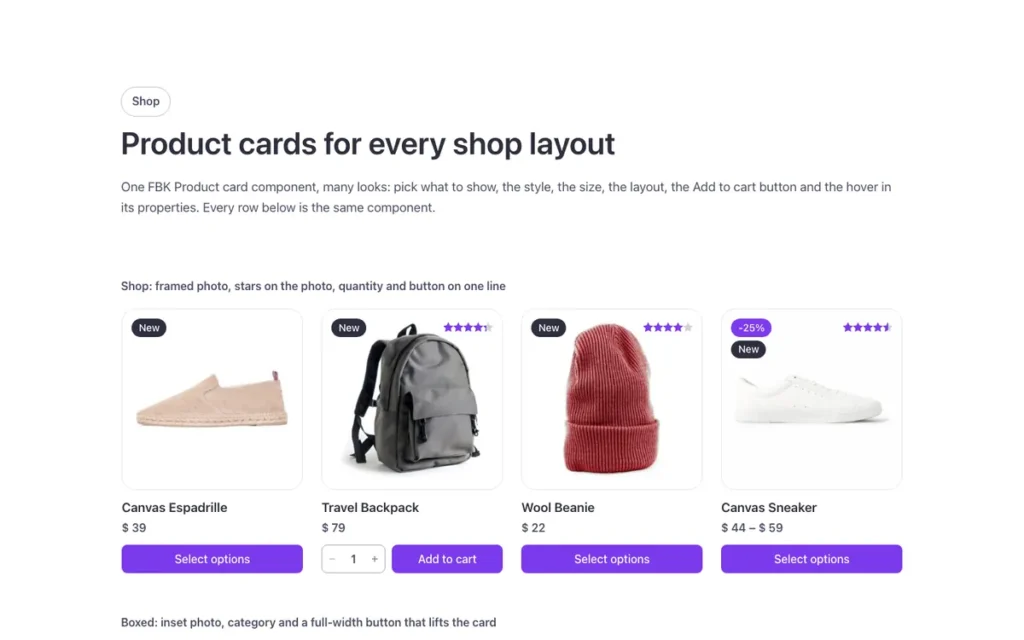
One FBK Product card, as in the first example below. Change anything from the panel after you paste it.
In the annual plan, $99/year. See plans
Every FBK Product card variation
Live from the demo site. Switch the width and the background, or open it full screen.
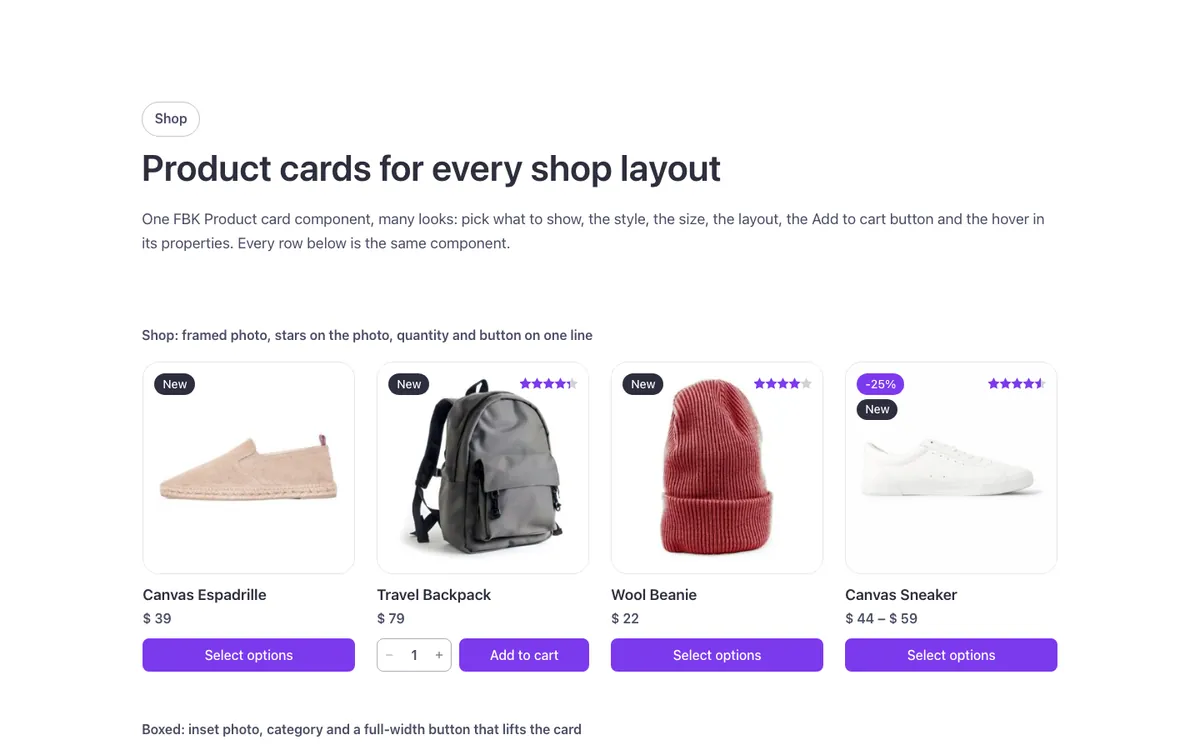
Loading demo…
The options
Every property of the component, in the order the Bricks panel shows them.
| Option | Choices | Default |
|---|---|---|
| Hide category | On or off | Off |
| Hide ratingThe stars show only on products with reviews. | On or off | Off |
| Hide badgesSale: the product is on sale; with the Fancy Bricks plugin (or its support file in the child theme) it shows the discount, for example -20%. New: added in the last days (Bricks > Settings > WooCommerce > Product badge "New", in days). Out of stock: no stock left. | On or off | Off |
| Hide button | On or off | Off |
| LookPlain: no box. Soft: a tinted box that fills on hover. Outline: a thin edge that fills on hover. Solid: filled. Elevated: a raised surface with a small shadow. The same looks as every Fancy Bricks component (and the buttons: Ghost, Secondary, Outline, Primary). | Plain, Soft, Outline, Solid, Elevated | Plain |
| ToneBrand: your accent color. Neutral: the text color around it. White: the same on every background, for controls over photos. | Brand, Neutral, White | Neutral |
| ShapeRounded and Square follow your site radius. | Rounded, Square | Rounded |
| SizeCompact: smaller text and photo, for lists, sidebars and 4–6 cards per row (horizontal: a 4em thumbnail, price and button on one line). Large: for 1–2 cards per row. | Compact, Medium, Large | Medium |
| Title sizeAuto: follows Size (Compact S, Medium M, Large L). S, M or L fix it whatever the card size (S text-s, M text-m, L h5). | Auto, S, M, L | Auto |
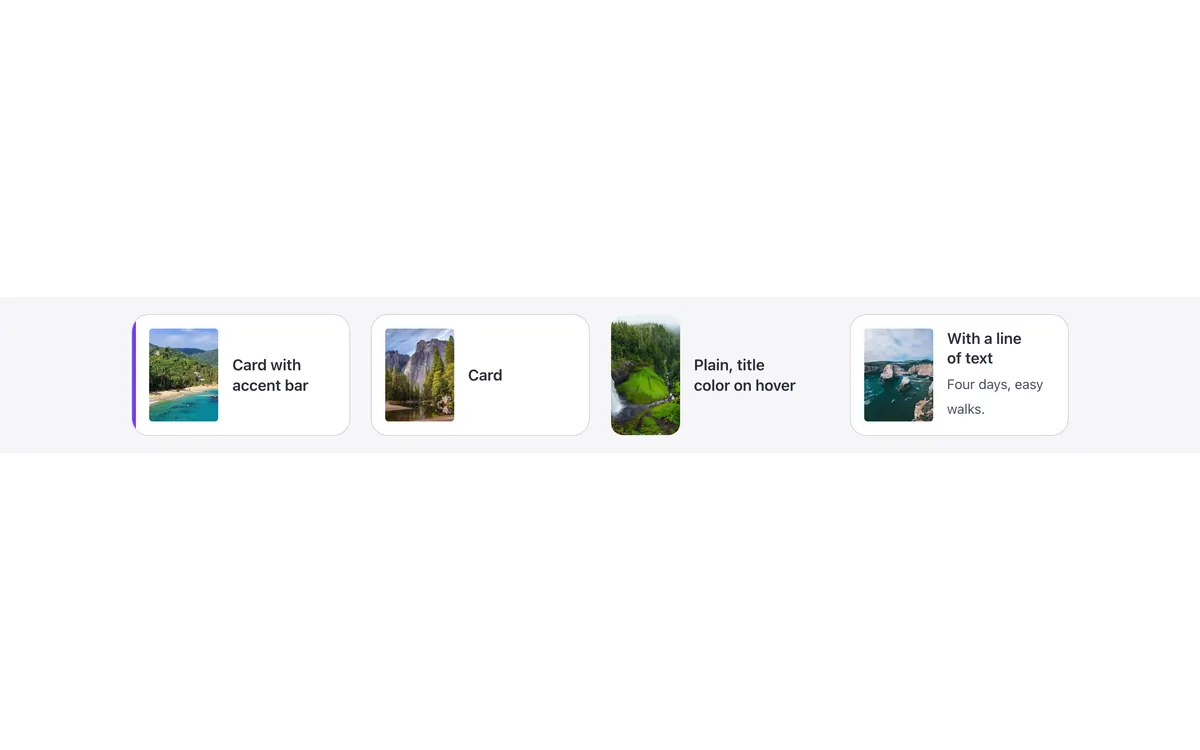
| LayoutHorizontal: a square photo beside the text, inside the padding (lists, wide columns, search results); it keeps its row on phones. | Vertical, Horizontal | Vertical |
| Photo shape | Square, Portrait (3:4), Landscape (4:3) | Square |
| Photo positionInset: the photo sits inside the card's padding, with rounded corners (with a boxed look). Framed: the photo carries a thin edge and the radius; best with the Plain look (the shop card of the Fancy Etch demo). | Full bleed, Inset, Framed, Inset and framed | Framed |
| Rating positionOn the photo: the stars sit in the photo's top corner, opposite the badges (vertical cards). | Under the title, On the photo | On the photo |
| Price styleThe struck-through regular price stays in the text color. | Default, Sale price in the brand color | Default |
| Button styleThe FBK Button styles. Ghost is a text link with an underline. | Primary, Secondary, Outline, Ghost | Primary |
| Button tone | Brand, Neutral | Brand |
| Button iconFor example a cart (Ionicons ios-cart). With «Icon only» the button is a square icon; WooCommerce names it for screen readers («Add “Hoodie” to your cart»). | Any icon | — |
| Icon only | On or off | Off |
| Icon positionAfter the text, for example a long arrow on a text-link (Ghost) button. | Before the text, After the text | Before the text |
| Button width | Auto, Full width | Auto |
| Button positionBelow: the buy row closes the card (the buttons of a row line up). Beside the price: price and button share the last line (best with «Icon only»). On the photo: at the foot of the photo, it shows on hover and keyboard focus, always on touch screens (vertical cards). Slide up: a full-width bar at the card's foot; on hover photo and text rise and the bar comes up from below (vertical cards, best with a boxed look; always shown on touch screens). | Below, Beside the price, On the photo, Slide up | Below |
| QuantityA − 1 + field before the button of simple products in stock. Turn on Bricks > Settings > WooCommerce > «Show quantity input field in product loop» (Bricks draws the field); without it the button adds one. | Off, On | Off |
| Photo hoverSecond photo: the first photo of the product gallery fades in (products without a gallery zoom instead). Zoom: the photo grows a little. | Second photo, Second photo and zoom, Zoom, None | Second photo |
| Card hoverThe title always takes the hover color and the photo has its own hover (Photo hover). Lift: the card rises with a soft shadow (best with a boxed look). Reveal: the button shows on hover beside the price (always on touch screens). | None, Lift, Reveal button | None |
| Title levelH3 inside a section with an H2 title. | H2, H3, H4 | H3 |
| HTML tagThe query loop goes on the li around the card; keep div (or article). | div, article | div |
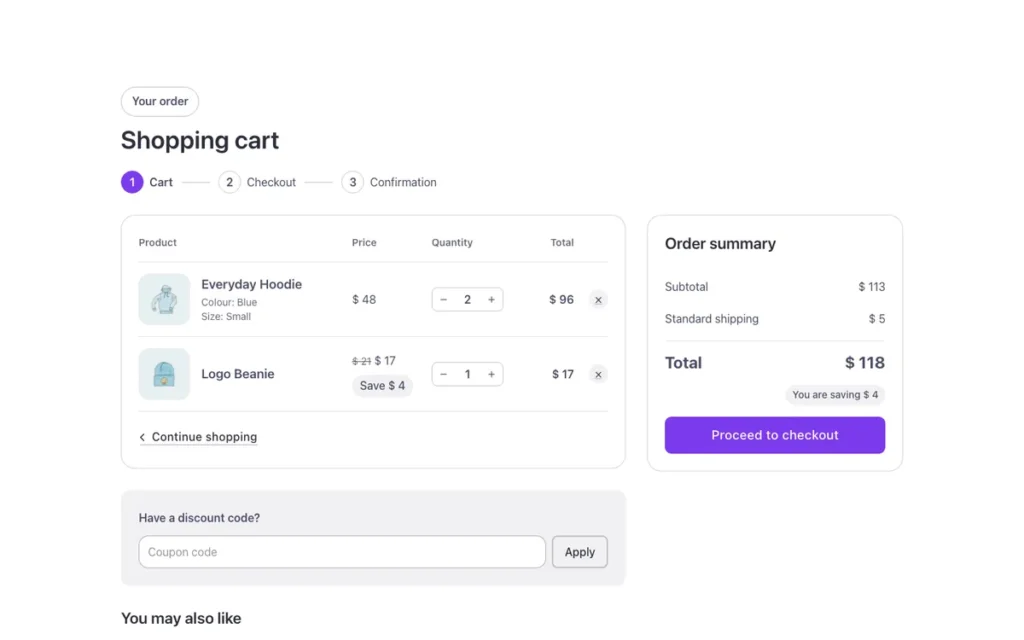
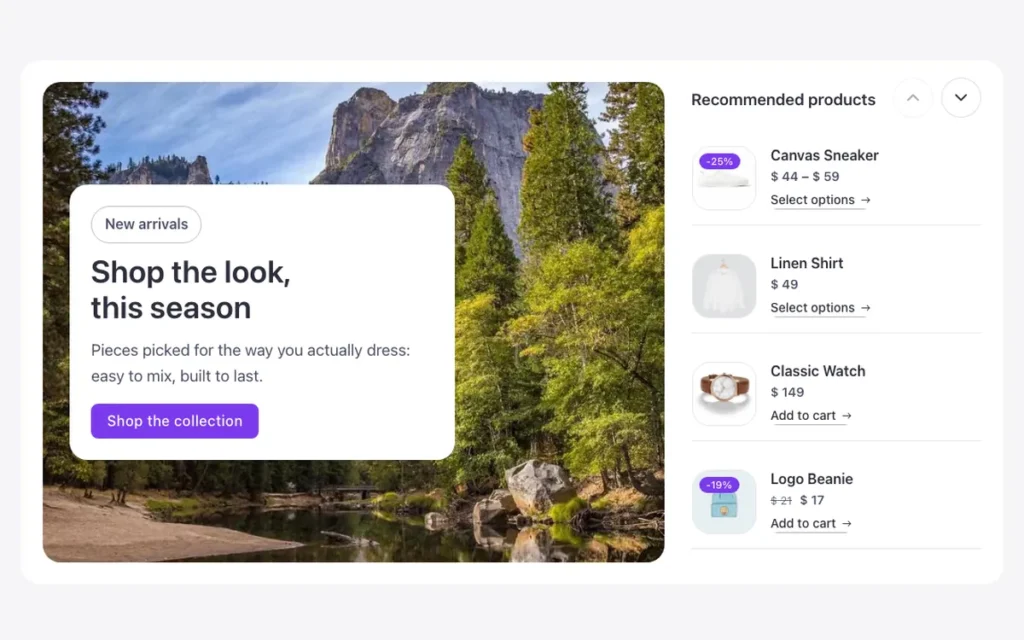
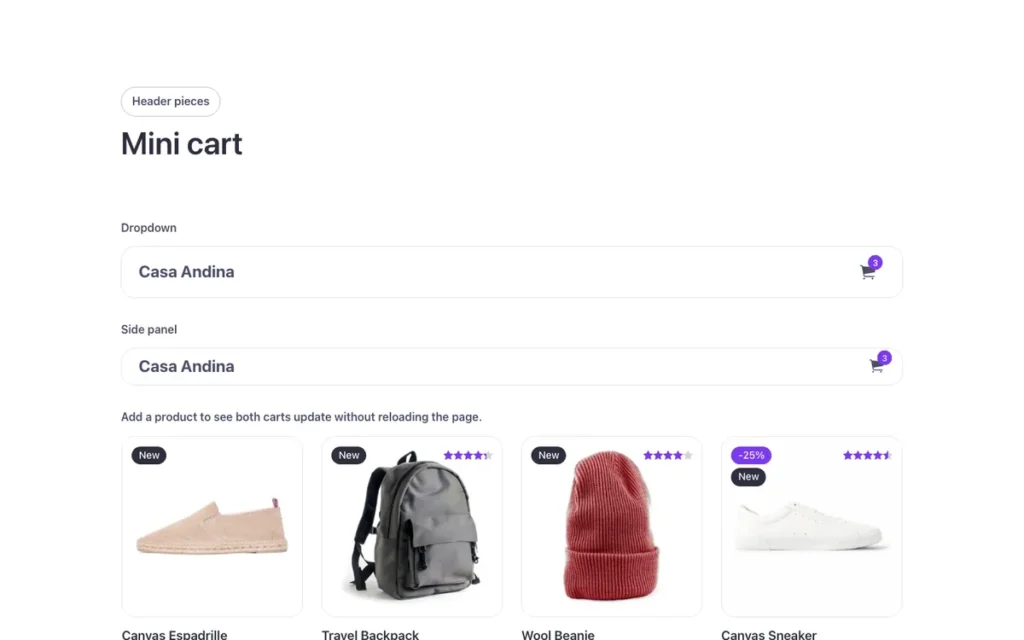
Used in 14 templates
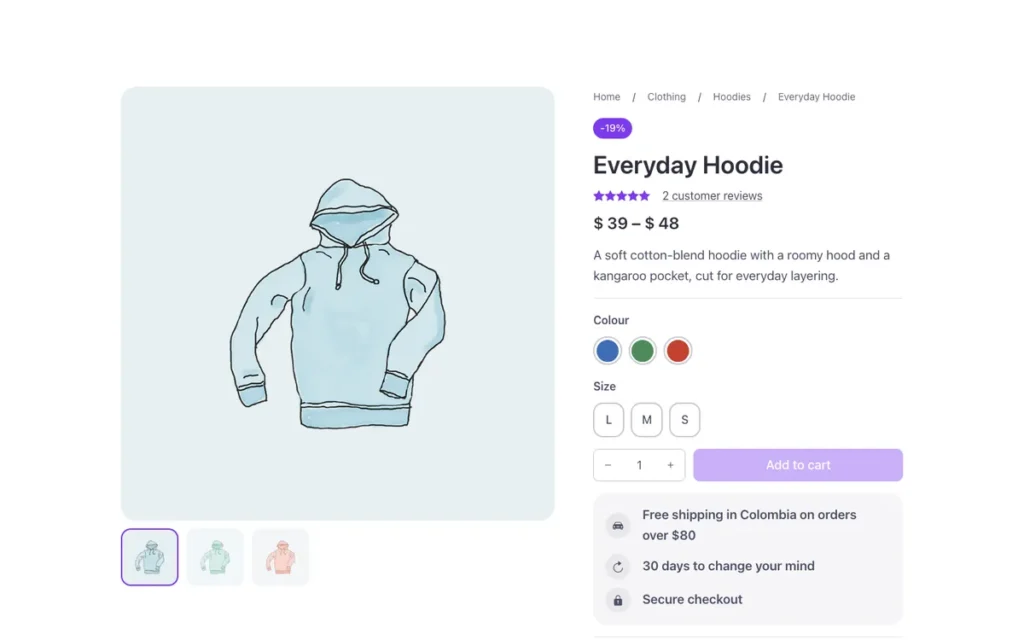
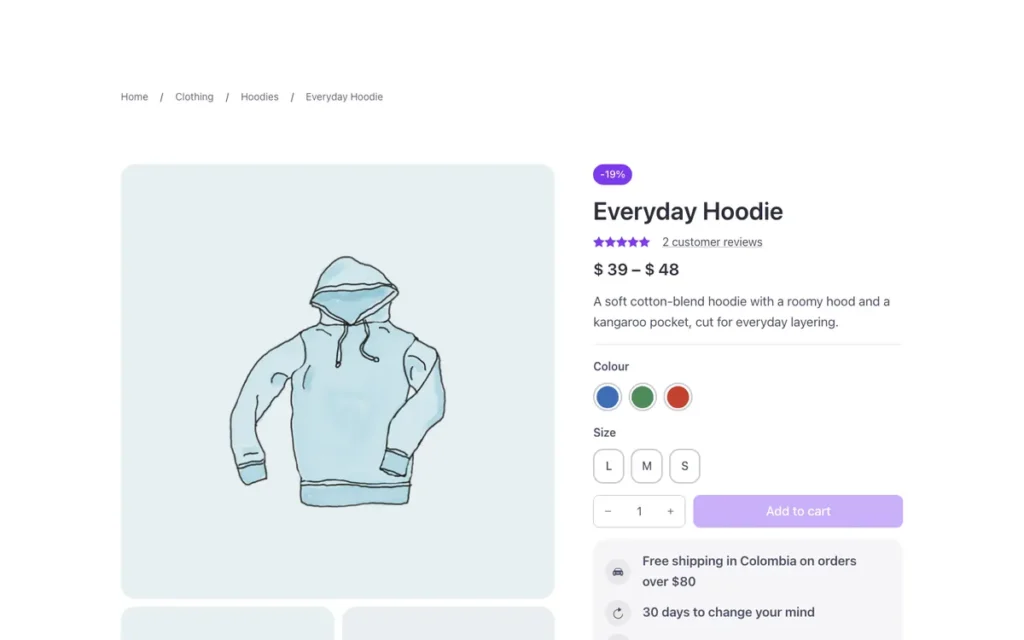
A few of them. Change FBK Product card once on your site and every one of these sections follows.
Related components
All components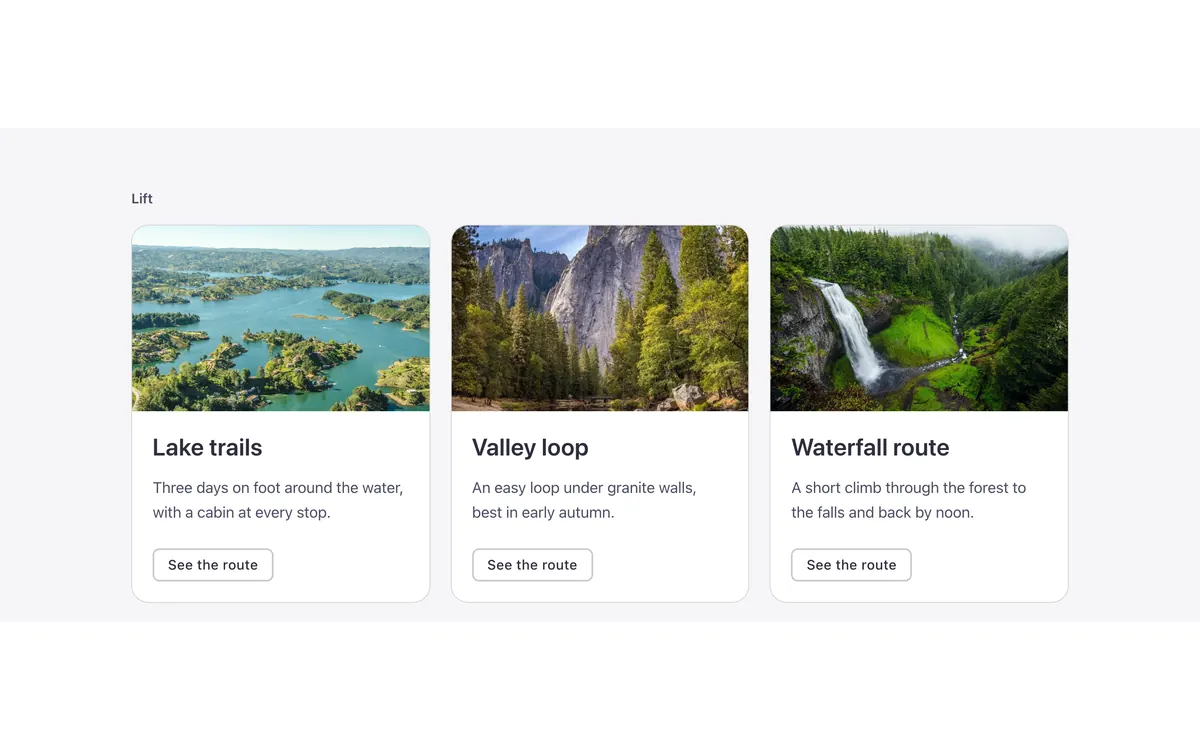
Questions, answered
Short answers about FBK Product card.
Do I need a template to use FBK Product card?
No. Copy it from this page and paste it anywhere in Bricks. It also comes with every template that uses it.
What happens if I change FBK Product card on my site?
Every instance follows: the design lives in the component and its classes, not in each copy.
Does it work with my framework?
Yes. Copy it for Fancy Framework, Automatic.css or Core Framework, and it uses your colors and sizes.
Every component comes inside a template
Browse the library, copy a section, and the components it uses come with it.