
Fancy Bricks plugin · Image comparison
Before and after image comparison slider for Bricks
Two photos, one line the visitor drags. A native Bricks element with keyboard support, on any page or product.


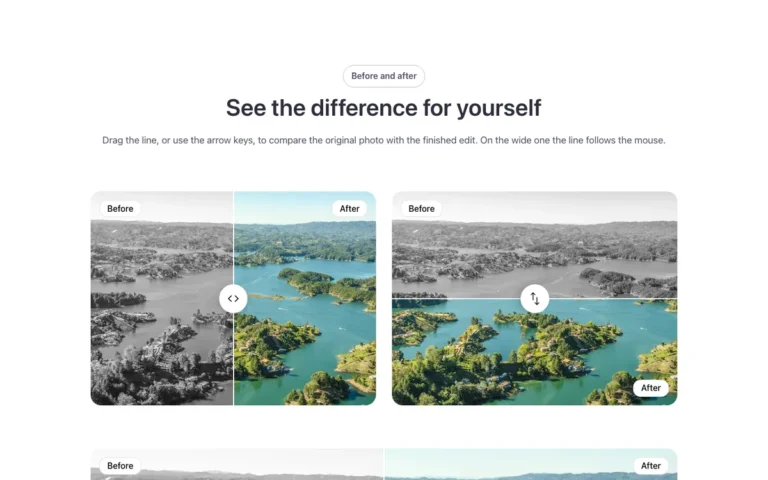
Color on the left, black and white on the right. Images, icon and colors come from the panel.
The slider, the way Bricks would have built it
- Drag the handle, or follow the pointer
- A real slider: arrow keys and screen readers
- Optional ring animation on the handle
- Returns to the center when the pointer leaves
- Five aspect ratio presets, or type your own
- Divider, circle and icon on your variables
Settings you’ll find in Bricks
Screenshots of the real panel, set like the demo above. Pick a group.
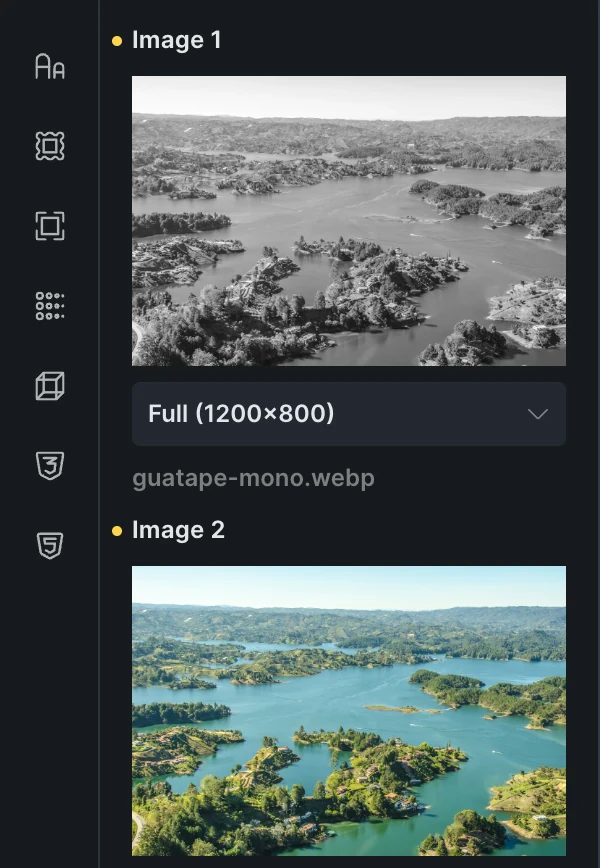
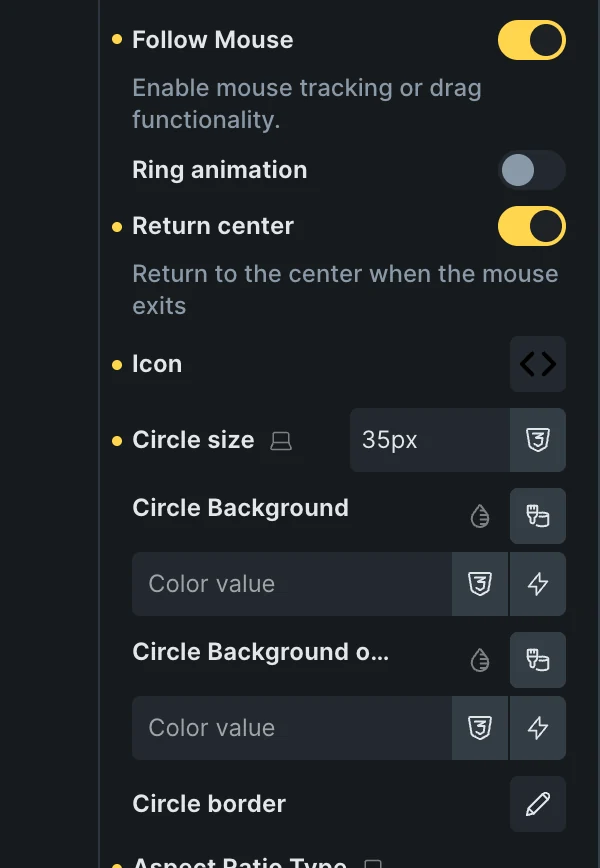
- Two photos from your media libraryImage 1 and Image 2, each with its own size.
- Follow, return and ringFollow the mouse, return to the center when it leaves, and a ring animation on the handle: one switch each.
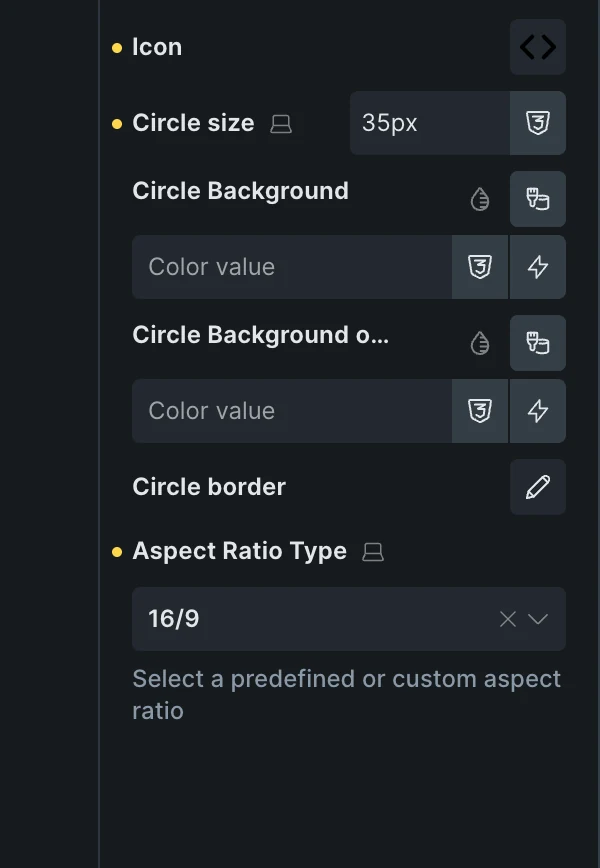
- The handleAn icon from the library or your own SVG, the circle’s size, background, background on focus and border.
- Aspect ratio16/9 here, another preset, or your own.
Included in the annual and lifetime plans. See plans
Three places it earns its spot
Renovations and real estate
The room before and after the work.
Retouching portfolios
One slider per project, inside a query loop.
Product pages
With and without the finish, next to the gallery.
A section already built around the slider
Copy it, paste it in Bricks, swap the two photos.
Questions, answered
Can’t find yours? Write to us.
Is the slider included in the free plan?
No. The plugin is an extra included with the annual and lifetime plans.
Does it work inside query loops and on product pages?
Yes. Set the images from dynamic data and it repeats per post.
Can I use it on client websites?
Yes. Every plan covers unlimited websites, yours and your clients’.
Included in the annual and lifetime plans
Install the plugin from your account once you’re on a paid plan. Free templates and frameworks stay free either way.
See plansHow to install the plugin