
Fancy Bricks plugin · Countdown
A countdown timer built for Bricks Builder and WordPress
Nestable: days, hours, minutes and seconds are elements you style like any other. The end date is fixed, or a date field from dynamic data.
Number and label are text elements inside a block: each preset is plain Bricks styling.
Nestable, so every box is yours to style
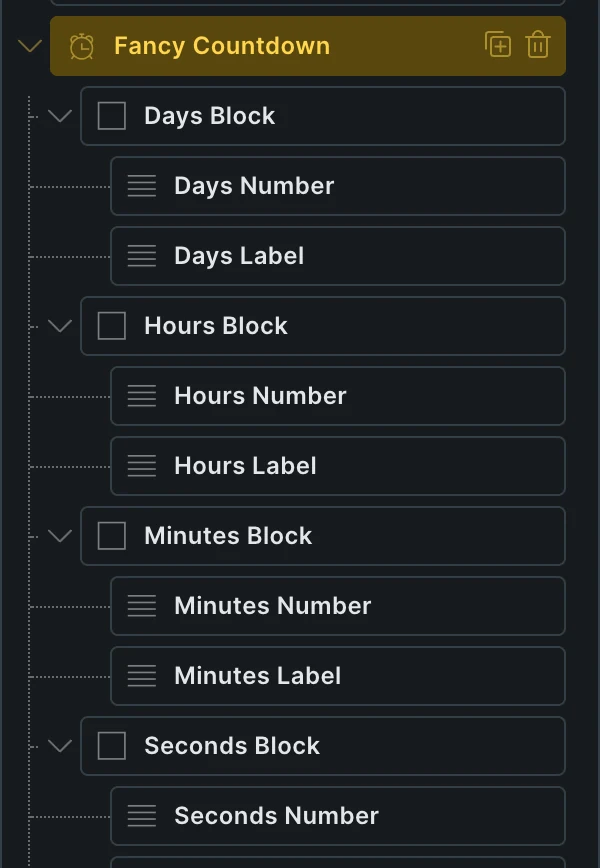
- Four blocks in the structure panel, number and label each
- End date from a dynamic field: ACF, JetEngine, Woo sale end
- Timezone of the deadline, not of the visitor’s browser
- An expired message at zero, or nothing at all
- Row or column, alignment and gap from the panel
- Colors, radii and type on your variables
Settings you’ll find in Bricks
Screenshots of the real panel, set like the demo above. Pick a group.
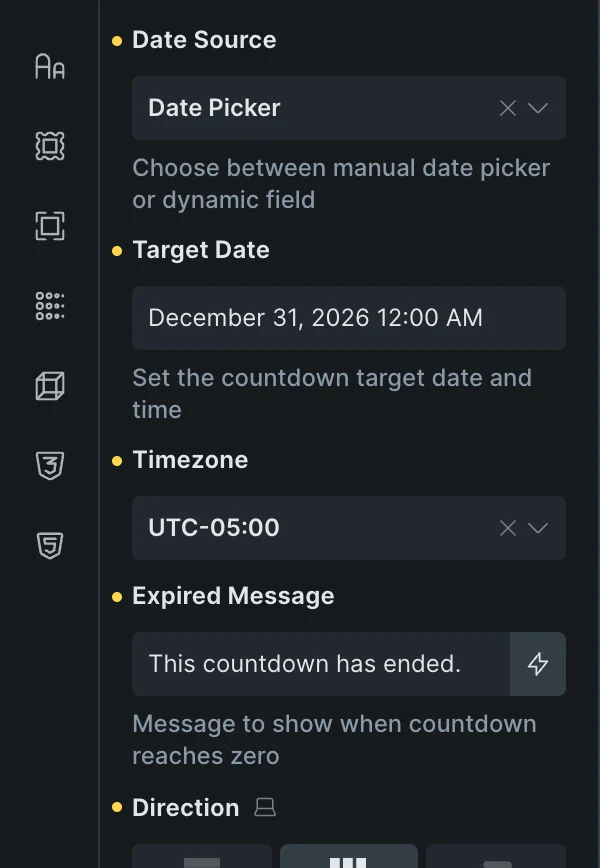
- Date picker or dynamic fieldSet the end date by hand, or read it from a field.
- Timezone and expired messageThe deadline’s own timezone, and the text that replaces the boxes at zero.
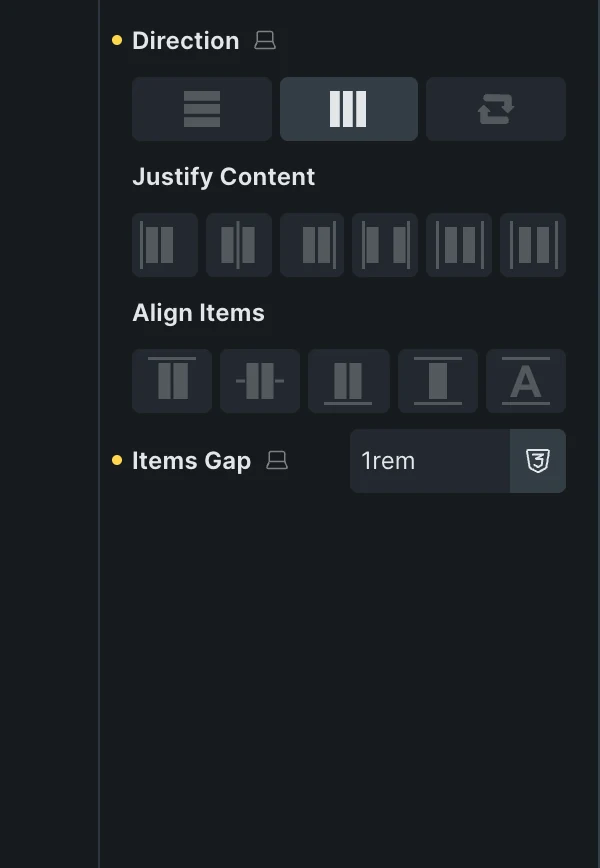
- Layout of the boxesDirection, justify, align and gap, as on any Bricks container.
- Blocks in the structureDays, hours, minutes and seconds, each a block with its number and label, styled like any element.
Included in the annual and lifetime plans. See plans
Countdowns for any section of your site
Sales and launches
A hero or CTA band with the deadline, then the expired message.
Early-bird prices
On the pricing page, counting to the price change.
Events and webinars
In a query loop, each card counts to its own start field.
A call to action already built around the countdown
Copy it, paste it in Bricks, set the date.
Questions, answered
Can’t find yours? Write to us.
Is it a native Bricks element, or an embed code?
A native element. Its four blocks show up in the structure panel with the usual style controls.
Can the end date come from dynamic data?
Yes. Set Date Source to Dynamic Field and type the tag, such as an ACF date.
Is it included in the free plan?
No. The plugin is an extra included with the annual and lifetime plans.
Included in the annual and lifetime plans
Install the plugin from your account once you’re on a paid plan. Free templates and frameworks stay free either way.
See plansHow to install the plugin