Copy and paste
Every template is copied from its page on fancybricks.co and pasted into Bricks. Classes and components come with it, already styled with your framework's variables.
Four steps, once per site
Do this once; every template you copy afterward just works.
- Install your framework. Fancy Framework (free), Automatic.css 4 or Core. See Choosing a framework.
- Turn on Code execution, if the template asks for it. See Turn on Code execution below.
- Copy the template. On its page, choose your framework and desktop or mobile first, then click Copy template.
- Paste it in Bricks with Ctrl+V or Cmd+V, on the canvas or in the structure panel.
Windows / Linux   Ctrl + V
macOS             Cmd + V
Choose your framework and approach
Above the Copy button, the copy bar says what you're copying for — for example "Copying for Fancy Framework · Desktop first".
- Click Change in the copy bar.
- Under Framework, pick Fancy, ACSS (Automatic.css 4) or Core.
- Under Approach, pick Desktop first or Mobile first. Match how your Bricks site's breakpoints are set up.
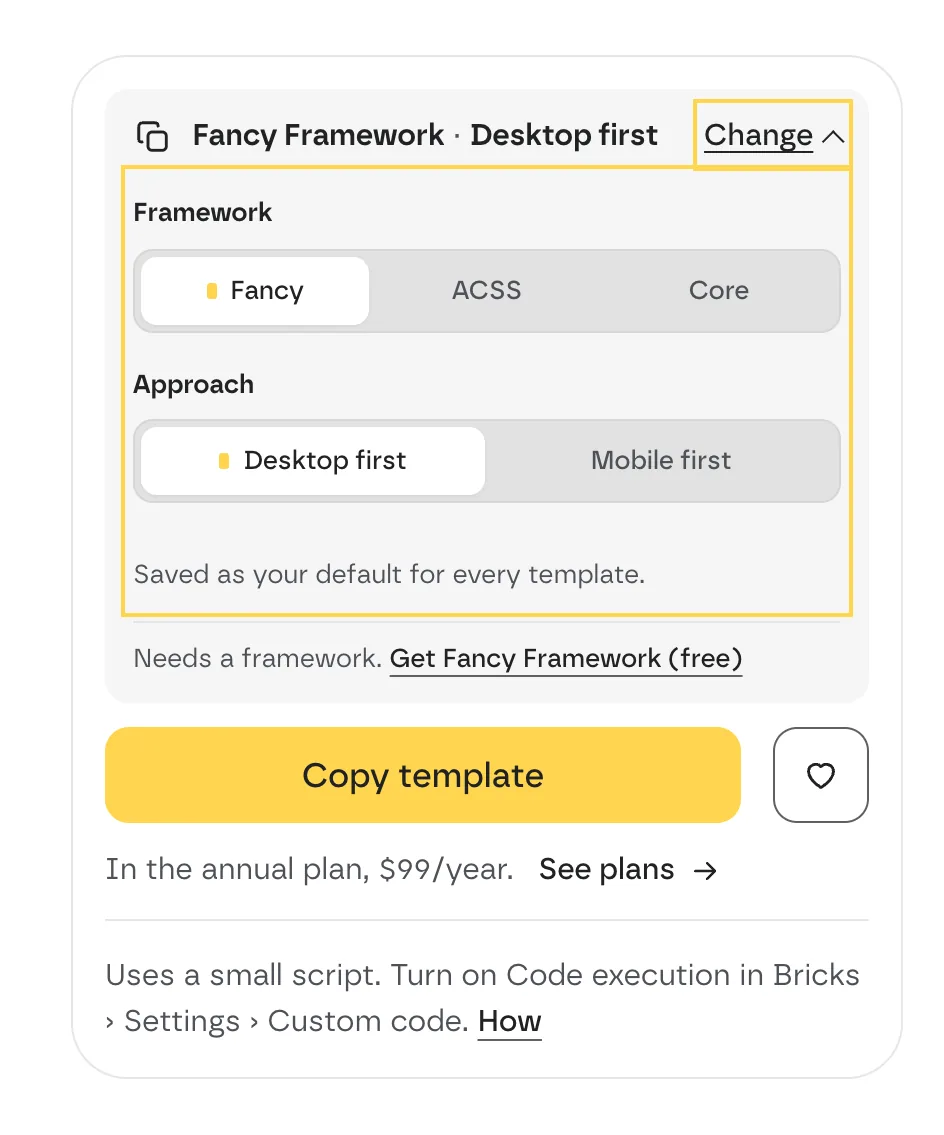 The copy card with Change open. The highlighted panel is where you pick
the framework and the approach.
The copy card with Change open. The highlighted panel is where you pick
the framework and the approach.
Your choice is saved as your default for every template. You can also set it in My account › Settings — see Your account.
Under the bar, a line reminds you what the framework needs: "Needs Automatic.css 4 on your site", "Needs Core Framework on your site", or, for Fancy Framework, a link to get it free.
Copy
-
Click Copy template.
-
The first time, a short checklist reminds you of what has to be in place: Before your first paste. Click Got it.
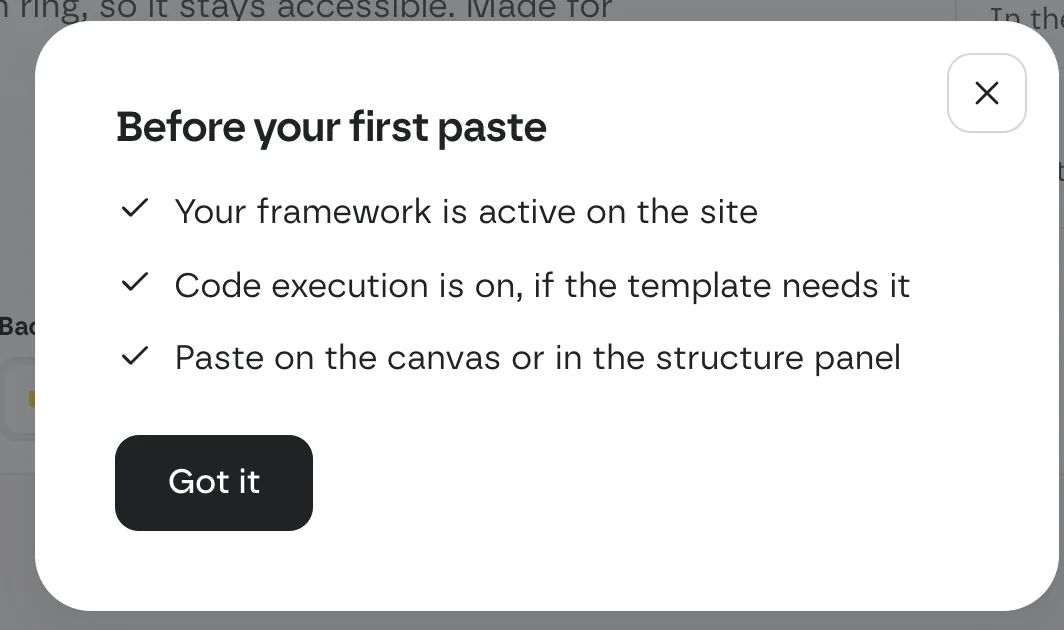 The checklist shows once, on your first copy.
 -
The button turns into Copied and a message confirms it: "Copied. Paste it in Bricks with Ctrl+V or Cmd+V." On templates with a script, it also reminds you to turn on Code execution.
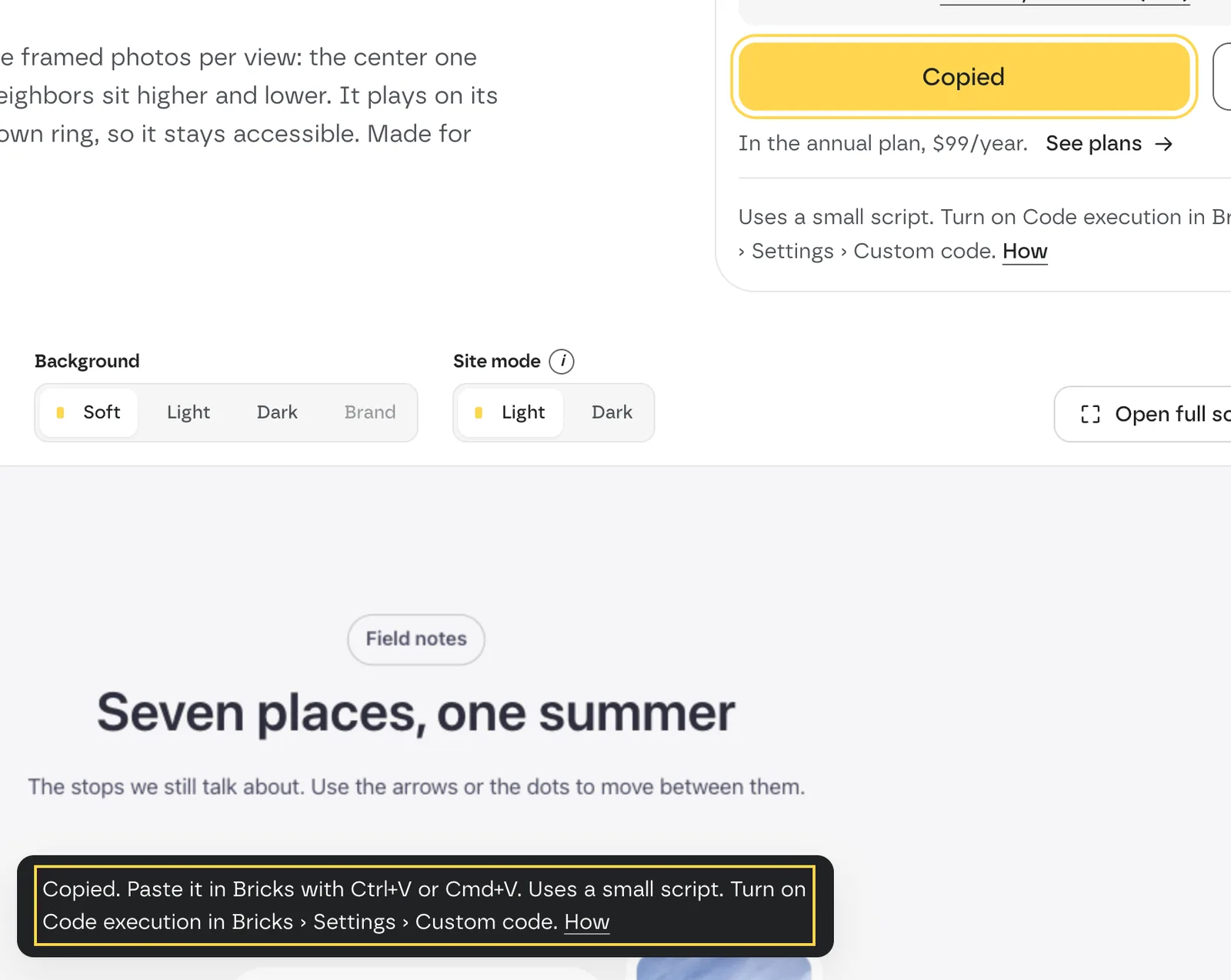 After copying: the button says Copied and the message tells you how to
paste.
After copying: the button says Copied and the message tells you how to
paste. -
Open your page in the Bricks builder and press Ctrl+V or Cmd+V on the canvas or in the structure panel.
If you picked a background in the preview, the copy uses it ("Copied with the Dark background…") — see Preview: Background vs Site mode.
Templates that need Code execution
Templates with a small script (sliders, tabs, counters…) carry a Needs Code execution tag, and a note under the Copy button: "Uses a small script. Turn on Code execution in Bricks › Settings › Custom code." Bricks only runs the script with it on. See Requirements.
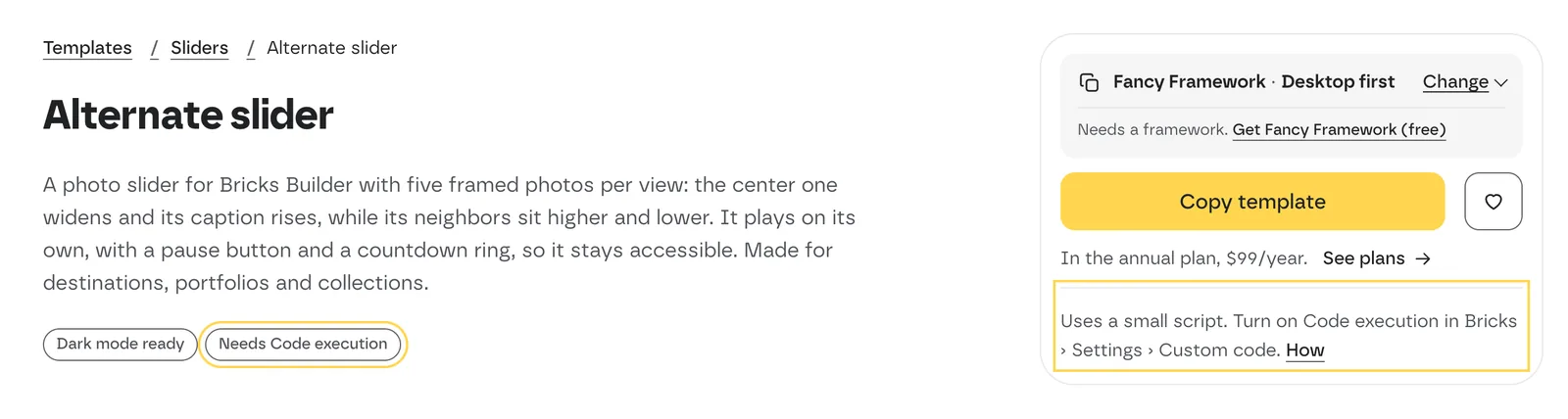 Two places tell you a template needs Code execution: the tag under its
description and the note in the copy card.
Two places tell you a template needs Code execution: the tag under its
description and the note in the copy card.
Turn on Code execution
Do this once per site, before you paste a template that needs it.
-
In your site's admin, go to:
Bricks › Settings › Custom code -
Under Code execution, switch on Enable code execution.
-
Under User roles with code execution capability, keep it on for Administrator (or the roles that build your pages).
-
Click Save Settings.
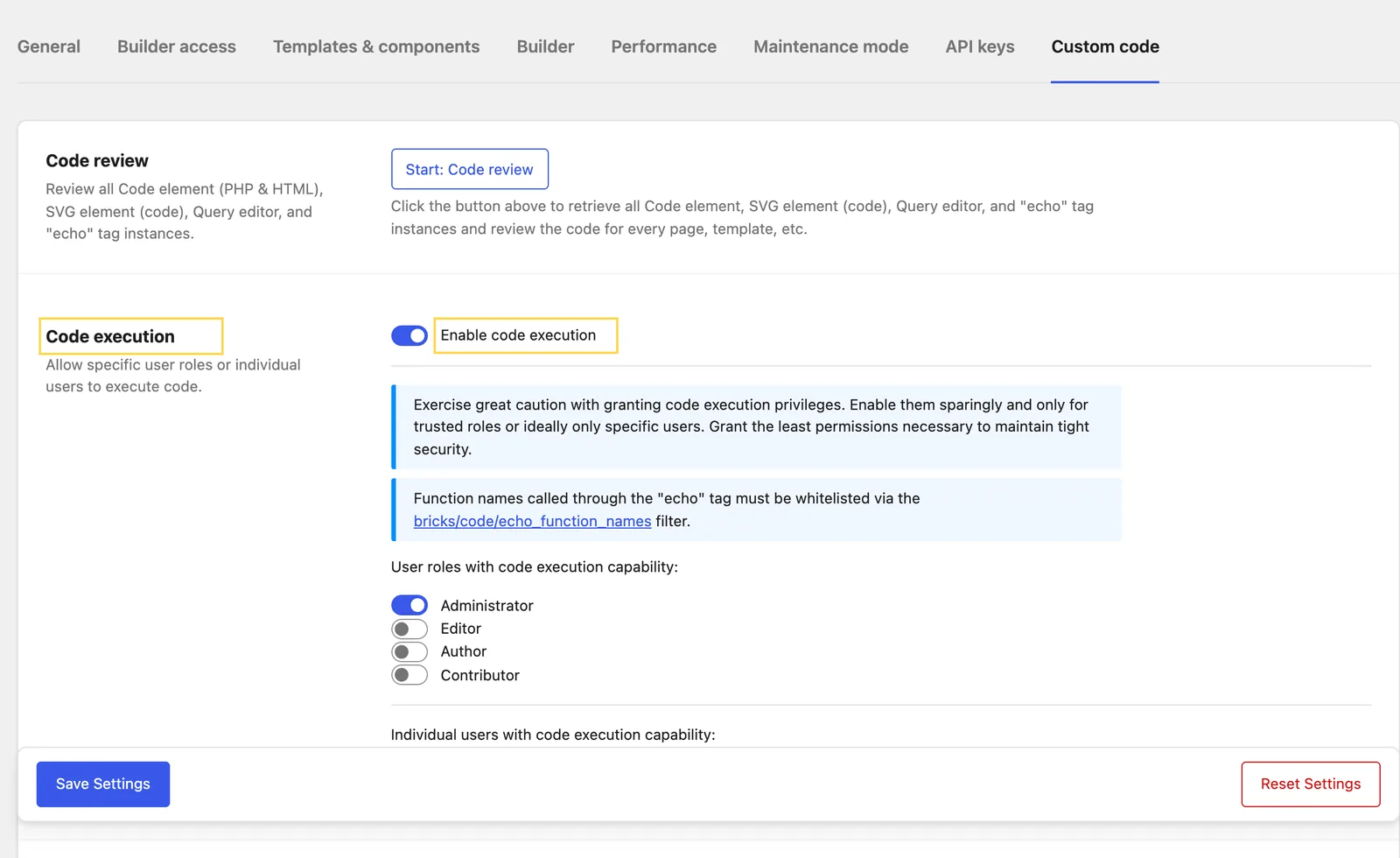 Bricks › Settings › Custom code. The highlighted switch is the one templates
with a script need.
Bricks › Settings › Custom code. The highlighted switch is the one templates
with a script need.
Without Code execution, the script of the template shows as plain text or doesn't run: sliders don't slide and tabs don't switch.
What comes with the paste
The template's classes and its components come with it. The template page lists them under What's inside: you edit them from the Bricks panel after you paste. Adjust it lists the variables you can change, the element and class they're set on, and their default value. For example, the alternate slider lists:
/* On the element Slider, class fbk-alternate */

/* Height of every slide */
--fbk-t-height: clamp(22em, 30vw, 27em);

/* How much wider the active photo gets (1.55 = 155%) */
--fbk-t-active-f: 1.55;

/* White frame around the photos */
--fbk-t-frame: var(--white);
Set them in the Bricks panel on that element (or in its class), and the template follows. See Components.
Free and paid templates
- Logged out: copying asks you to create a free account (it's free and takes a minute) or log in. On a paid template, it also offers the plans.
- Free account: you can copy every template marked Free. A paid template says "This template is part of the full library" with See plans.
- Annual or lifetime plan: you can copy the whole library.
See Account and plans.
Common problems
- The pasted template loses its styling. The framework you chose isn't active on the site. Activate it, or copy the version for the framework you use.
- The script shows as plain text. Code execution is off — see Requirements.
- "Your browser blocked the copy." The dialog shows the template code, already selected: click Copy again, or press Ctrl+C or Cmd+C.
- "Your session expired." Log in again and copy.
- "Too many requests." Wait an hour and try again.
Also in this section
- Components and favorites — copy one component on its own, save favorites, and copy again from your history.