Install and license
You download the plugin and your license key from My account › Fancy Bricks plugin (open it). Both come with the annual and lifetime plans.
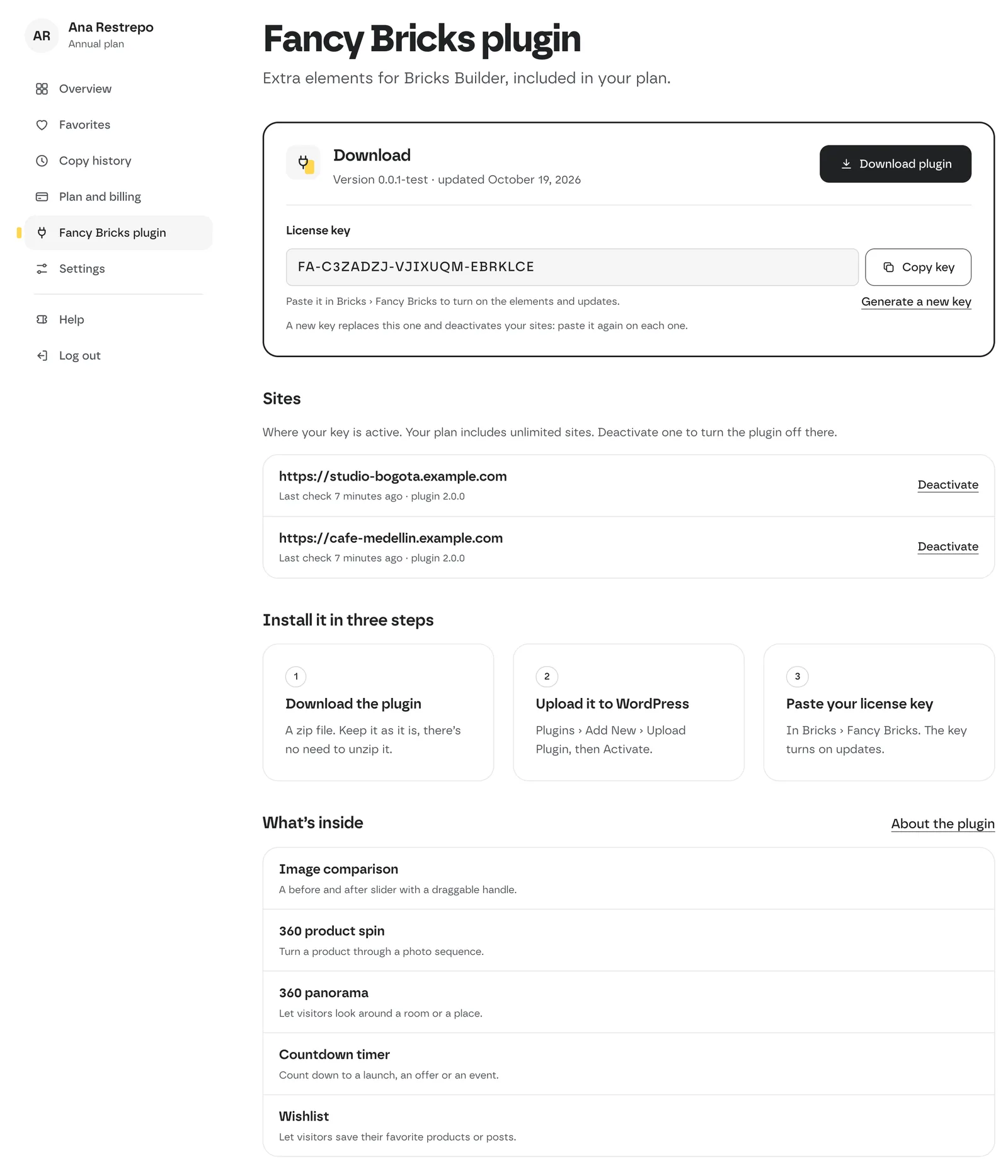 My account › Fancy Bricks plugin on an annual plan: the download, your key, the sites where it's active and the install steps.
Install it step by step
-
Download the plugin. Click Download plugin. It's a zip file: keep it as it is, there's no need to unzip it. The section shows the current version and when it was updated.
-
Upload it to WordPress. In your site's admin, go to:
Plugins › Add New › Upload PluginChoose the zip, click Install Now, then Activate.
-
Paste your license key. Go to Bricks › Fancy Bricks, paste the key in License Key and click Verify License. The key turns on the elements and updates.
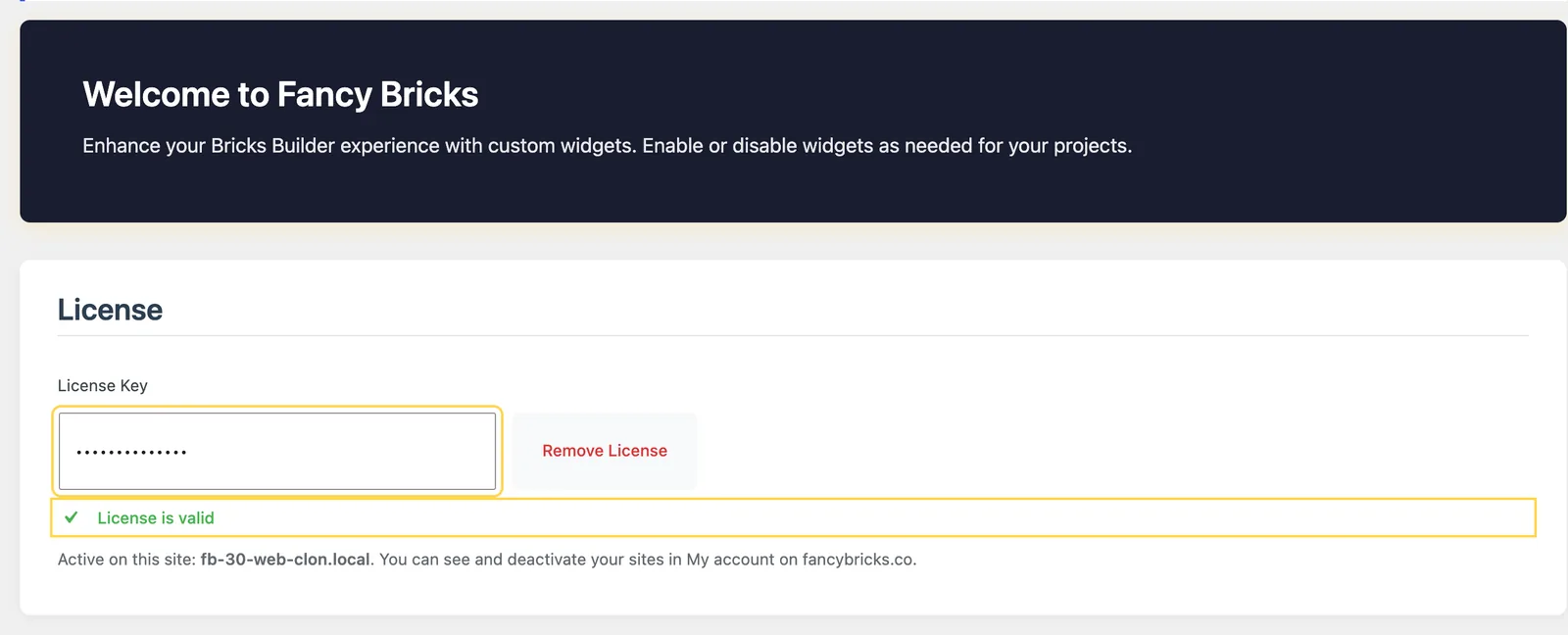 Bricks › Fancy Bricks, License section. Once the key is verified the status
says «License is valid» and names this site.
Bricks › Fancy Bricks, License section. Once the key is verified the status
says «License is valid» and names this site. -
Turn on the elements you use. On the same page, each element has its own card with an Enable switch. Only the ones you turn on show up in the builder, under the fancy-bricks category.
 The element cards, each with its Enable switch.
You don't need the plugin to use the templates. Every template works with Bricks and your framework alone.
Your license key
Your key is in My account › Fancy Bricks plugin, under License key. Use Copy key to copy it. The same key works on every site: your plan includes unlimited sites, yours and your clients'.
If the field says your key isn't ready yet, contact support.
On a free account the same section shows the plugin and the steps, with See plans in place of the download and a note in place of the key:
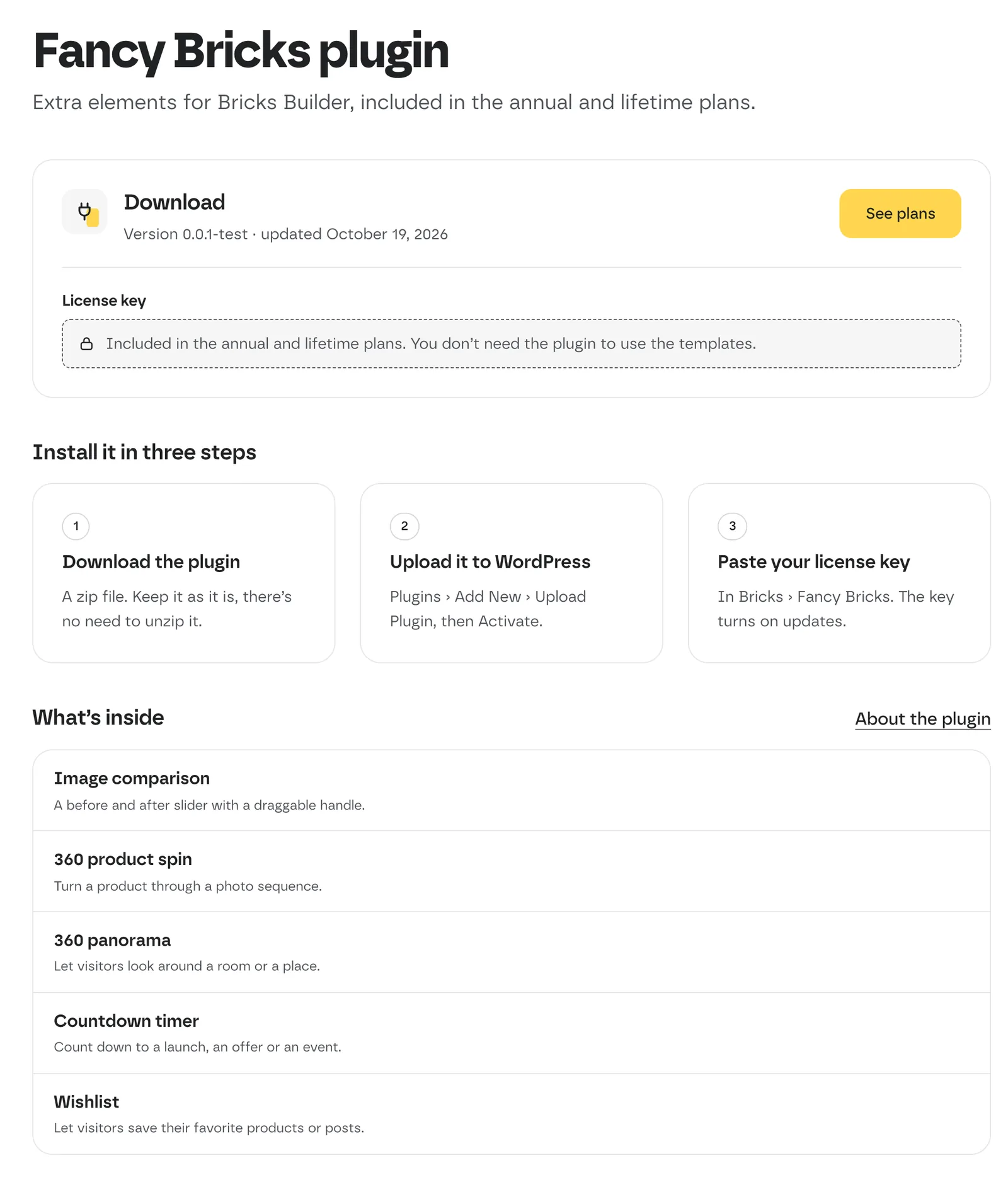 The same section on a free account.
Sites
The Sites list shows where your key is active, with the last time each site checked its key and the plugin version it runs. A site shows up after you verify the key on it. Sites with plugin 1.5.1 or older show up once they update.
Deactivate a site to turn the plugin off there: that site stops working with the key at its next check, until you verify the key again in Bricks › Fancy Bricks on that site.
Generate a new key
Generate a new key replaces your key.
Your current key stops working right away, and every site in the list is deactivated. Paste the new key in Bricks › Fancy Bricks on every site that uses the plugin to keep updates on.
If your plan ends
When an annual plan ends (for example, after you cancel the renewal), the account becomes free and plugin updates stop. Your pages keep working: no template depends on the plugin. See Billing, renewal and upgrades.
Common problems
- "License keys come with the annual and lifetime plans." You're on a free account. The plugin and its key come with the paid plans.
- "Too many download attempts." Wait an hour and try again.
- "The plugin file is not available right now." Contact support.
- A site stopped verifying the key. It may have been deactivated from My account, or you generated a new key. Paste the current key and click Verify License again.