Wishlist and favorites
Lets visitors save their favorite products or posts. It's three pieces that work together: a toggle to save an item, a counter that updates live, and a Wishlist query type to list the saved items on a favorites page. It works with WooCommerce products and with any public post type: listings, recipes, articles.
 Live demo: the toggle on each card. The Placement switch shows the same element as a header counter and as a saved items loop.
Add it
- In Bricks › Fancy Bricks, turn on Wishlist / Favorites.
- In the builder, add Fancy Wishlist (category fancy-bricks). It isn't nestable.
- Choose a Display Mode: Wishlist Toggle or Simple Counter.
Visitors don't need an account. Logged-in users keep their list in their user profile; guests keep it in a cookie in their browser.
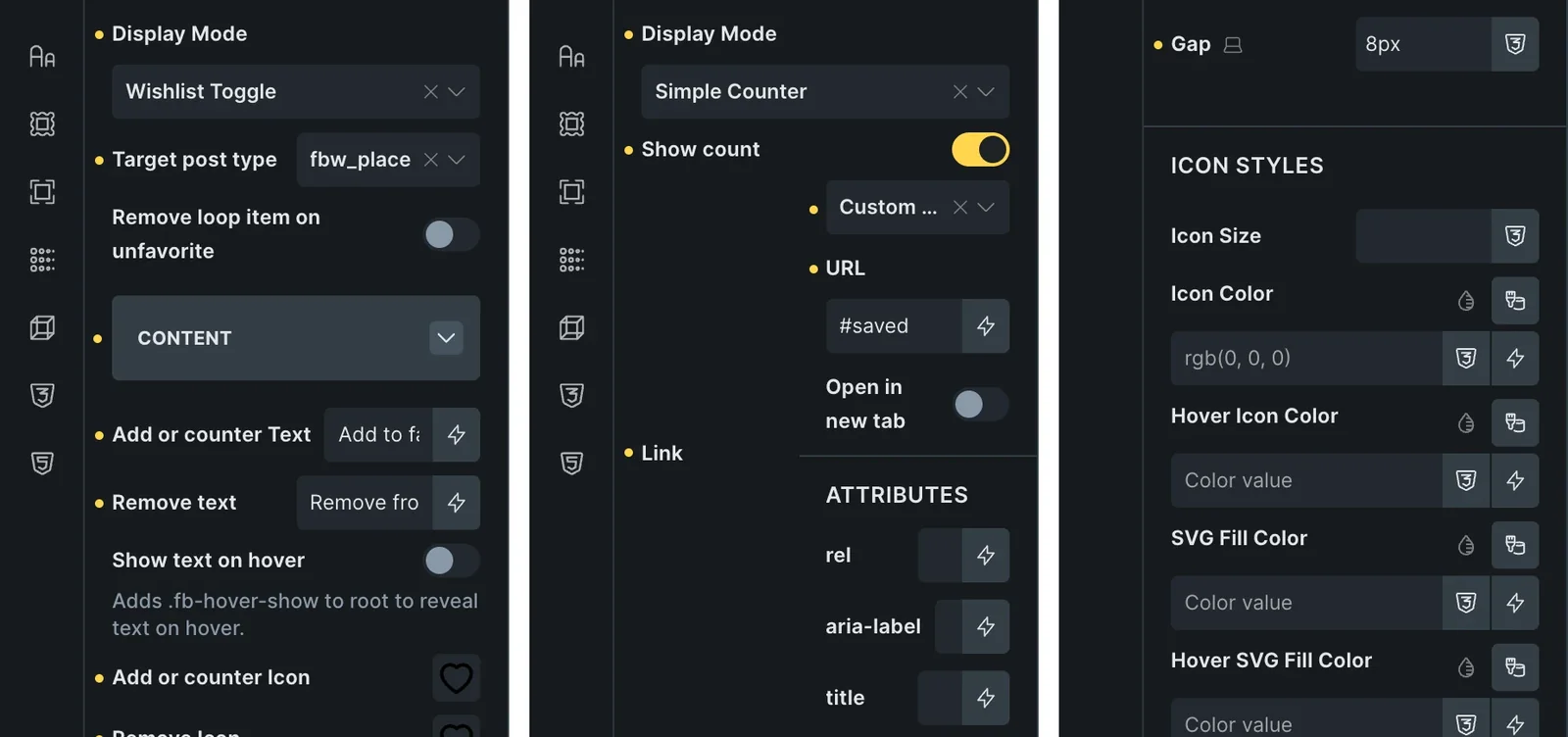 The real Bricks panel. From left to right: Display Mode Wishlist Toggle with its texts and icons, Display Mode Simple Counter with its link, and the Styles group.
The toggle
Put the toggle where the item is known: in a query loop card, or on the single template of the post type (the product page, for products). It saves and removes that item, and switches between its two states.
| Control | What it does | Default |
|---|---|---|
| Display Mode | Wishlist Toggle. | Wishlist Toggle |
| Target post type | The post type it saves. Any public post type. | Products |
| Add or counter Text | The text while the item isn't saved. | My Wishlist |
| Remove text | The text once it's saved. | Remove from favorites |
| Show text on hover | Hides the text until the button is hovered. | Off |
| Add or counter Icon | The icon while the item isn't saved. | An empty heart |
| Remove Icon | The icon once it's saved. | A filled heart |
| Remove loop item on unfavorite | On the favorites page, removes the card on the spot when the visitor unsaves it. | Off |
| Loop item selector | With the option above, the CSS selector of the card to remove, for example .bricks-post or your card's class. | — |
Change Add or counter Text to something like "Add to favorites" for a toggle: the default text is meant for the counter.
The counter
A link to your favorites page with the number of saved items. Put it in the header, next to the cart.
| Control | What it does | Default |
|---|---|---|
| Display Mode | Simple Counter. | Wishlist Toggle |
| Show count | Shows the number of saved items. | On |
| Link | Where it goes, usually your favorites page. | # |
| Target post type | The post type it counts. | Products |
| Add or counter Text | The counter's text. | My Wishlist |
| Add or counter Icon | The counter's icon. | An empty heart |
The number updates as visitors save and remove items, without reloading the page.
The favorites page
The plugin adds a Wishlist type to Bricks query loops.
- Create the page that lists the favorites (the one the counter links to).
- Add a Container, Block, Div or Section, and turn on Use query loop.
- In the query, set Type to Wishlist.
- Set Post type (it appears below the query) to the same post type as your toggles. Products is the default.
- Inside the loop, build the card as usual with dynamic data, and add a Fancy Wishlist toggle so visitors can remove items from there.
The query of that loop, at a glance:
Use query loop   on
Type             Wishlist
Post type        Products   (the same post type as your toggles)
To make the card vanish as it's unsaved, the toggle inside the card uses:
Remove loop item on unfavorite   on
Loop item selector               .bricks-post   (or your card's class)
The loop shows the visitor's saved items in the order they saved them. Turn on Remove loop item on unfavorite in that toggle so the card disappears as soon as it's removed.
Styles group
The Styles group has the custom style controls:
- Gap: space between the icon, the text and the count (default 8px).
- Counter Styles and Counter Position (counter only): Count Size, Count Color, Count Background, Count Border, and Count Position, Static or Absolute (default), with Top, Right, Bottom and Left for the absolute badge.
- Icon Styles: Icon Size, Icon Color, Hover Icon Color, SVG Fill Color, Hover SVG Fill Color, SVG Stroke Color, Hover SVG Stroke Color.
- Remove Icon Styles (toggle only): the color, SVG fill and SVG stroke of the saved state.
- Icon Container and Remove Icon Container: background, border and padding around the icon, in each state.
- Text Styles: typography, background, padding and border of the text.
Requirements
- Products need WooCommerce. Any other public post type works without it.
- Use the same Target post type in the toggle, the counter and the favorites loop.
Accessibility
The toggle is a real button that tells screen readers whether the item is saved, and its text change is announced.