Categories dropdown
One button that opens a multilevel menu of your categories: WooCommerce product categories, blog categories, tags, or any public taxonomy of your own. Subcategories open in place, with a back button to the level above. Use it in a shop header, above a blog archive, or for the topics of a knowledge base.
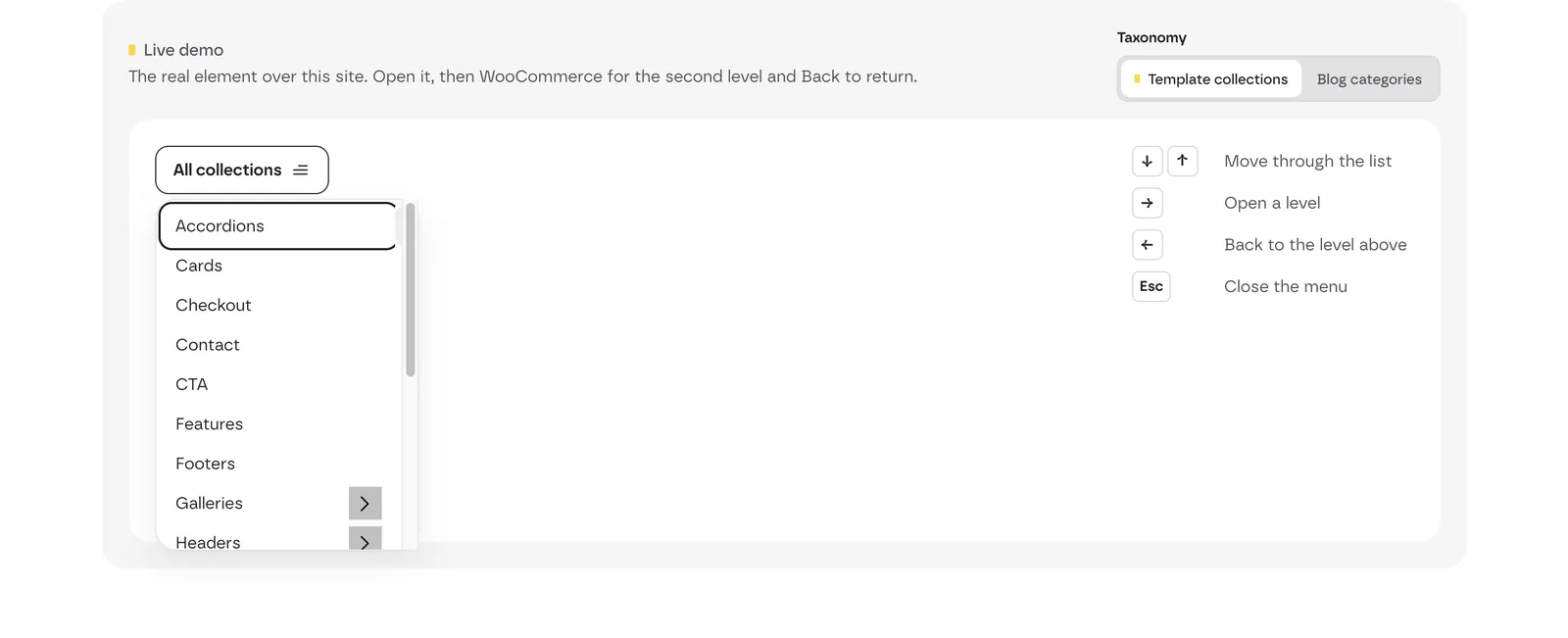 Live demo with the menu open: an arrow on a category opens its subcategories, and Back returns. The keyboard keys are listed on the right.
Add it
- In Bricks › Fancy Bricks, turn on Categories Dropdown.
- In the builder, add Fancy woo Categories Dropdown (category fancy-bricks). It isn't nestable.
- Pick the Taxonomy.
It doesn't need WooCommerce: product categories are the default, but any public taxonomy works. On a site without WooCommerce, pick another taxonomy.
Settings
 The real Bricks panel. Left: trigger text and icon, back button and taxonomy. Right: menu position, counts, depth and order.
Content
| Control | What it does | Default |
|---|---|---|
| Trigger Text | The button's text. | Categories |
| Trigger Icon | The button's icon. | A chevron down |
| Back Button Text | The text of the back button in submenus. | Back |
| Taxonomy | The taxonomy the menu lists. Any public taxonomy. | Product categories |
| Hide Dropdown in Editor | Keeps the menu closed in the builder, for a cleaner preview. | Off |
| Menu Position | Auto (adjusts to the space on screen, on the live page only), Left or Right. | Auto |
| Show Product Count | Shows the number of items next to each category. | On |
| Hide Empty Categories | Leaves out categories with nothing in them. | On |
| Enable Accessibility Features | Keyboard navigation and screen reader support. Turn it off only for a lighter script. | On |
| Maximum Depth | How many levels the menu shows (1–5). | 3 |
| Order By | Name, Product Count, Menu Order or ID. | Name |
| Order | Ascending or Descending. | Ascending |
Style groups
Besides the standard typography, padding, background and border controls, each part has its own group:
- Trigger Button: the button that opens the menu.
- Dropdown Styles: the menu's Background, Border, Box Shadow, Max Height and Menu width (default 320px).
- Category Items: typography, padding and Item Background of each category.
- Submenu indicator: the button that opens a subcategory: Width, Height, Background, Icon Color, Icon hover Color, Icon Size, Border and Transition Duration.
- Back button: typography, padding, margin, background and border.
Accessibility
With Enable Accessibility Features on, the whole menu works from the keyboard: the arrow keys move through it, Home and End jump to the first and last item, Enter and Space open, and Escape closes. Screen readers are told when the menu and each submenu are open.