Turns a product through a sequence of photos, so visitors can spin it with the
mouse, a finger or the arrow keys. Photos only: no 3D model to prepare. Use it
on product pages, as a hero, or once per item in a catalog loop.
See it live
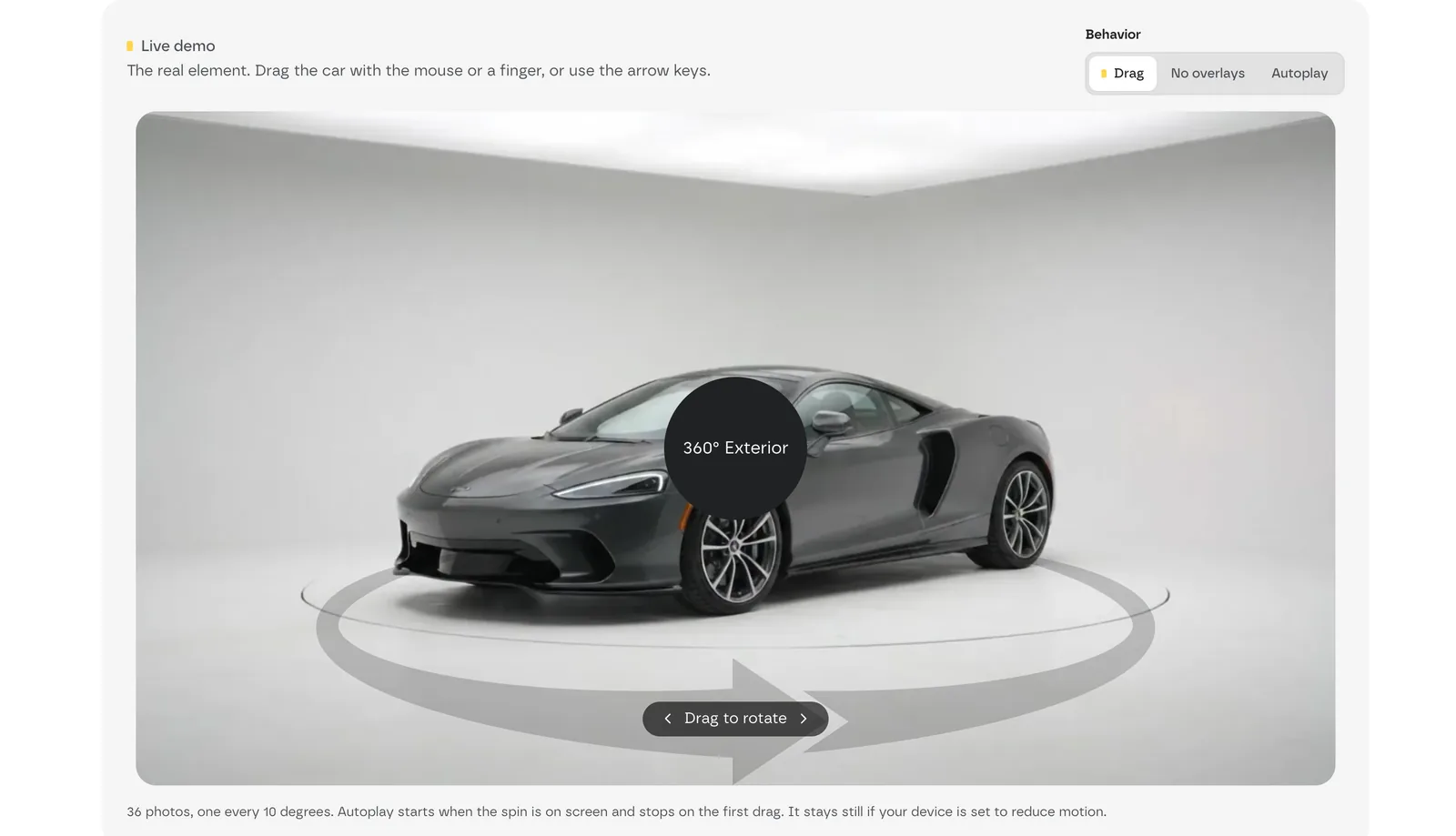 Live demo: drag the car, or try No overlays and Autoplay from the Behavior switch.
Add it
- In Bricks › Fancy Bricks, turn on 360 Rotation.
- In the builder, add Fancy 360 Rotation (category fancy-bricks). It
isn't nestable.
- In Frames, select every photo of the spin at once.
Settings
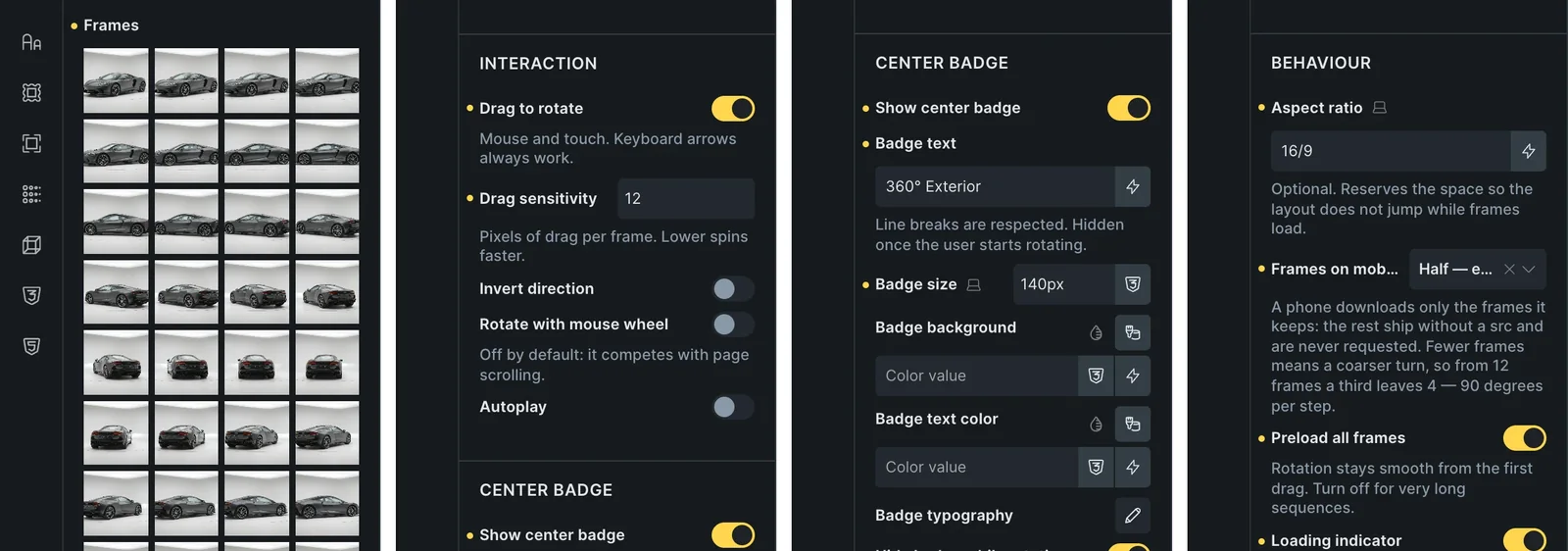 The real Bricks panel. From left to right: the Frames gallery, Interaction, Center badge, and Behaviour (aspect ratio and frames on mobile).
All the settings are in the Content tab, split by headings.
Frames
| Control | What it does | Default |
|---|
| Frames | Every frame of the spin, picked as a gallery. Accepts dynamic data, like the native gallery. | — |
| Frame order | As selected (manual), File name (natural sort: frame-2 comes before frame-10) or Attachment ID (upload date). | As selected |
| Reverse order | Plays the frames backwards. | Off |
Interaction
| Control | What it does | Default |
|---|
| Drag to rotate | Mouse and touch. The keyboard arrows always work. | On |
| Drag sensitivity | Pixels of drag per frame (2–80). Lower spins faster. | 12 |
| Invert direction | Spins the other way. | Off |
| Rotate with mouse wheel | Off by default because it competes with page scrolling. | Off |
| Autoplay | Spins on its own. | Off |
| Autoplay speed (ms per frame) | 20–500. | 90 |
| Start only when visible | Autoplay starts when the element is on screen, to save CPU and battery. | On |
| Stop autoplay on interaction | Autoplay stops when the visitor takes over. | On |
Center badge
| Control | What it does | Default |
|---|
| Show center badge | A round badge over the product. | On |
| Badge text | Line breaks are kept. Hidden once the visitor starts rotating. Accepts dynamic data. | 360° Exterior |
| Badge size | The badge's size. | 140px |
| Badge background, Badge text color, Badge typography | The badge's look. | — |
| Hide badge while rotating | Hides it during the spin. | On |
| Hide badge on mobile | On a phone the badge covers a good part of the product. Uses your site's mobile landscape breakpoint. | Off |
Drag hint
| Control | What it does | Default |
|---|
| Show drag hint | Appears once the frames are ready and disappears at the first interaction. | On |
| Hint text | Accepts dynamic data. | Drag to rotate |
| Hint position | Bottom or Top. | Bottom |
| Hint offset from edge | Distance from the edge it's anchored to. A percentage is measured against the width. | 48px |
| Hint text color, Hint background | The hint's look. | — |
| Nudge on load | Turns a couple of frames and back, so it reads as interactive without words. Only when autoplay is off. | On |
Bottom arrow
| Control | What it does | Default |
|---|
| Show bottom arrow | The curved arrow under the product that hints it can be spun. | On |
| Arrow style | One of the two bundled arrows, or Custom SVG… | The first bundled arrow |
| Arrow graphic | With Custom SVG…, pick your SVG from the media library. | — |
| Arrow color, Arrow width, Arrow offset from bottom | The arrow's look and position. | —, 70%, 0px |
Behaviour
| Control | What it does | Default |
|---|
| Aspect ratio | Optional, for example 16/9. Reserves the space so the layout doesn't jump while frames load. | — |
| Frames on mobile | All of them, Half — every 2nd frame or A third — every 3rd frame. Phones download only the frames they keep. | All of them |
| Preload all frames | Keeps the spin smooth from the first drag. Turn it off for very long sequences. | On |
| Loading indicator | Covers the stage while the frames download, so the first paint is never a blank box. | On |
| Loading indicator color, Loading indicator background | The indicator's look. | — |
| Accessible label | Read by screen readers, and used as the alt text of the frames. Accepts dynamic data. | 360 degree view |
Tips
- Fewer frames on phones. With 12 frames, a third leaves 4: 90 degrees per
step. Shoot more frames if you plan to cut them on mobile.
- Query loops. The element works inside query loops, so a catalog can have
one spin per item.
- Keyboard. The left and right arrow keys turn the product; Home goes back
to the first frame.
- Reduced motion. When the visitor's system asks for reduced motion,
autoplay and the nudge stay off. Dragging still works.
- Write a real label. Change Accessible label to name the product, for
example "360 degree view of the red sneaker".