Puts visitors inside a 360 photo so they can look around a room or a place, by
dragging, with a finger or with the arrow keys. It needs one equirectangular
photo, the kind a 360 camera saves: a flat image twice as wide as it is tall.
Use it for showrooms, venues, rentals, hotels and real estate.
See it live
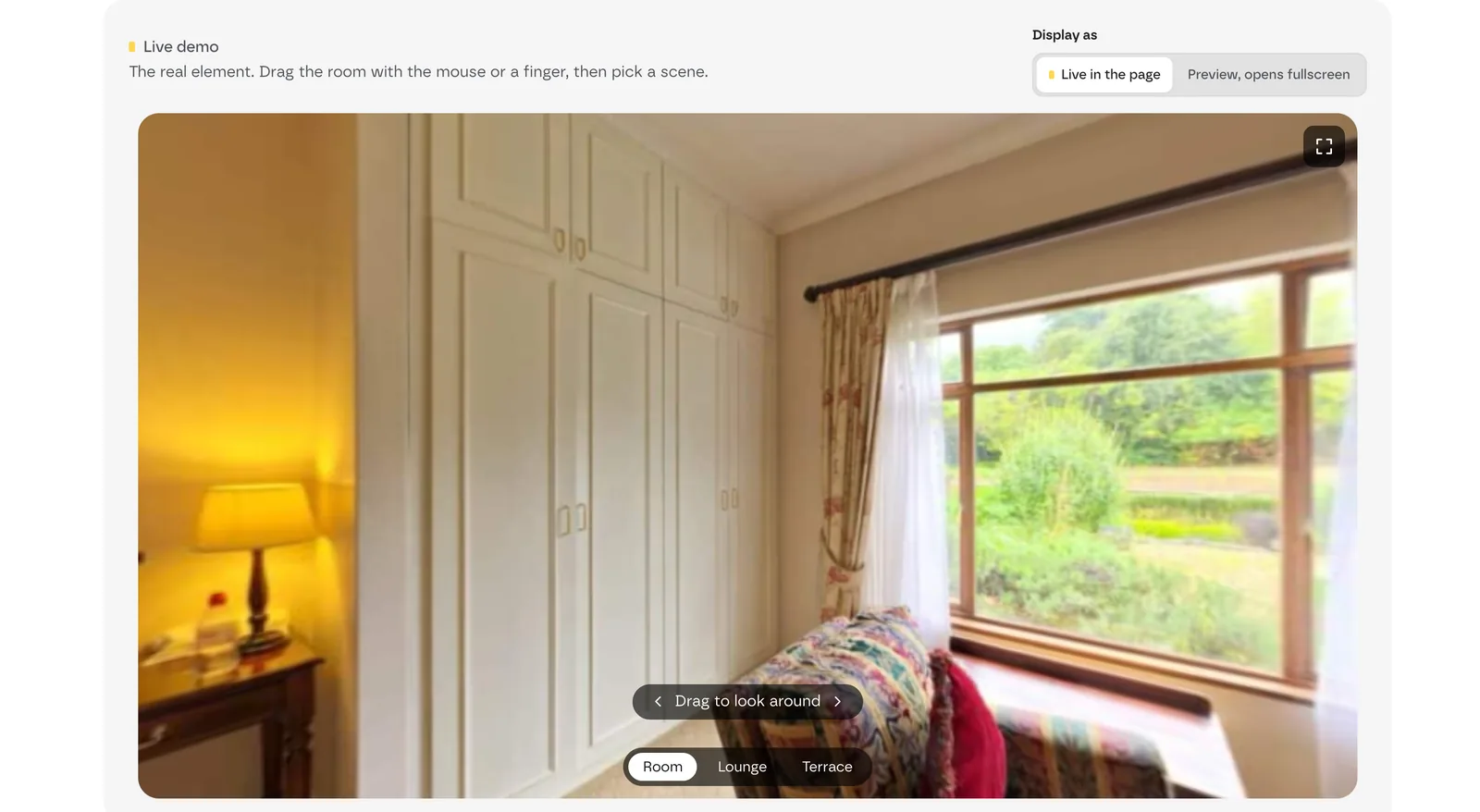 Live demo: drag the room to look around and pick a scene. Display as switches between Live in the page and Preview, opens fullscreen.
Add it
- In Bricks › Fancy Bricks, turn on 360 Panorama.
- In the builder, add Fancy 360 Panorama (category fancy-bricks). It
isn't nestable.
- Pick the photo in Panorama.
Settings
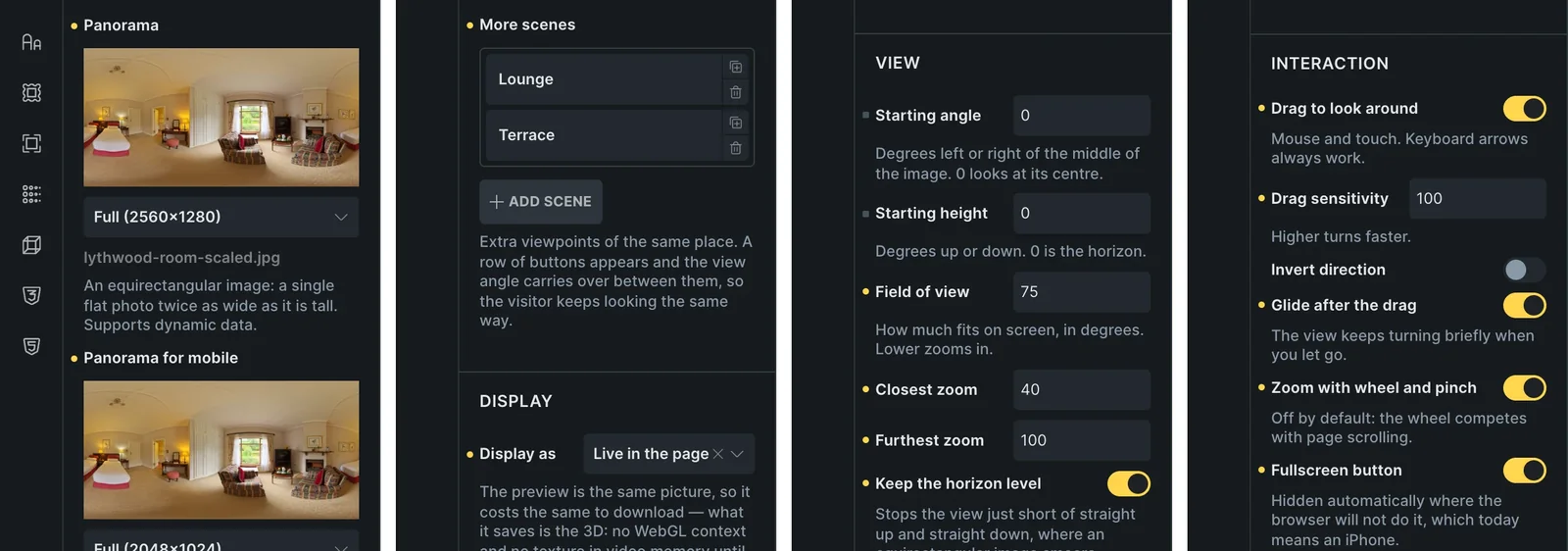 The real Bricks panel. From left to right: the panorama and its lighter copy for phones, the scenes, the starting view, and the interaction switches.
All the settings are in the Content tab, split by headings.
Scenes
| Control | What it does | Default |
|---|
| Panorama | The equirectangular photo, twice as wide as it is tall. Accepts dynamic data. | — |
| Panorama for mobile | Optional. A lighter copy for phones; the heavy one isn't downloaded there. Leave it empty to use the same photo. | — |
| Scene name | Labels this scene's button when there's more than one scene. | Front |
| More scenes | Extra viewpoints of the same place. Each row has a Name, a Panorama and a Panorama for mobile. A row of buttons appears, and the view angle carries over between scenes, so visitors keep looking the same way. | — |
Display
| Control | What it does | Default |
|---|
| Display as | Live in the page, or Preview, opens fullscreen. The preview downloads the same picture, but nothing runs in 3D until the visitor opens it. | Live in the page |
| Open button text | The preview's button. Leave it empty for the icon alone; screen readers still get a name for it. Accepts dynamic data. | View in 360° |
View
| Control | What it does | Default |
|---|
| Starting angle | Degrees left or right of the middle of the image (−180 to 180). 0 looks at its center. | 0 |
| Starting height | Degrees up or down (−80 to 80). 0 is the horizon. | 0 |
| Field of view | How much fits on screen, in degrees (30–120). Lower zooms in. | 75 |
| Closest zoom, Furthest zoom | The zoom limits, in degrees. Show when zoom is on. | 40, 100 |
| Keep the horizon level | Stops just short of straight up and straight down, where an equirectangular image smears. | On |
Interaction
| Control | What it does | Default |
|---|
| Drag to look around | Mouse and touch. The keyboard arrows always work. | On |
| Drag sensitivity | 20–200. Higher turns faster. | 100 |
| Invert direction | Turns the other way. | Off |
| Glide after the drag | The view keeps turning briefly when you let go. | On |
| Zoom with wheel and pinch | Off by default because the wheel competes with page scrolling. | Off |
| Fullscreen button | Hidden automatically where the browser can't go fullscreen, which today means an iPhone. | On |
| Auto rotate | Turns the view on its own. | Off |
| Auto rotate speed | Degrees per second (1–30). | 5 |
| Start only when visible | Starts when the element is on screen, to save CPU and battery. | On |
| Stop on interaction | Stops when the visitor takes over. | On |
Drag hint
| Control | What it does | Default |
|---|
| Show drag hint | Appears once the panorama is ready and disappears at the first interaction. | On |
| Hint text | Accepts dynamic data. | Drag to look around |
| Hint position | Bottom or Top. | Bottom |
| Hint offset from edge | Distance from the edge it's anchored to. | 32px |
| Hint text color, Hint background | The hint's look. | — |
Behaviour
| Control | What it does | Default |
|---|
| Aspect ratio | The viewer has no height of its own, so it needs one. Also reserves the space while the image loads. | 16/9 |
| Loading indicator | Covers the stage while the panorama downloads, so the first paint is never a blank box. | On |
| Loading indicator color, Loading indicator background | The indicator's look. | — |
| Accessible label | Read by screen readers, and used as the alt text of the still photo. Accepts dynamic data. | 360 degree panorama |
Tips
- Keyboard. The arrow keys look around, Home goes back to the starting
view, and Escape closes the fullscreen preview.
- Reduced motion. When the visitor's system asks for reduced motion, auto
rotate stays off.
- No WebGL? Where the browser can't draw in 3D, the element shows the photo
instead of an empty box, and picks the view back up when the GPU returns.
- Listings. Preview, opens fullscreen suits a listing card; one
panorama per project also works inside a query loop.
- Write a real label. Change Accessible label to name the place.