Header · Mega menu
Logo, a centered menu with four mega menus (cards with an icon and an offer card; columns of links, a photo and a text; cards to learn and a community row; links, contact details and posts) and a plain dropdown, then a log-in and a buy button. On phones each mega menu slides in over the menu.

Full-page views: desktop, phone and dark mode

At 1440px wide.

At 390px wide.
See it live: Header · Mega menu on fancybricks.co — the live preview, and the button that copies it.
Structure
This is what the Bricks Structure panel shows after you paste the template. Component instances say which component they are.
Header · Mega menu   (FBK Header)
  Nav · Logo
  Nav · Menu
    Nav · Items
      Nav · Close button
      Nav · Dropdown Products
        Nav · Submenu Products
          Nav · Row
            Nav · Main
              Nav · Group Included in the membership
                Nav · Label Included in the membership
                Nav · Grid Included in the membership
                  Menu card · Templates   (FBK Menu card)
                  Menu card · Design system   (FBK Menu card)
              Nav · Group Build faster
                Nav · Label Build faster
                Nav · Grid Build faster
                  Menu card · Components   (FBK Menu card)
                  Menu card · Snippets   (FBK Menu card)
            Card · Get access   (FBK Card)
              Card · Price
                Price · Amount
                Price · Period
              Button · Buy now   (FBK Button)
      Nav · Dropdown Solutions
        Nav · Submenu Solutions
          Nav · Columns
            Nav · Column Services
              Links · By service   (FBK Link list)
                Links · Menu By service
            Nav · Column Company
              Links · Company   (FBK Link list)
                Links · Menu Company
            Nav · Column Photo
              Nav · Photo   (FBK Image)
            Nav · Column Why
              Nav · Label Why
              Nav · Text Why
              Button · Our story   (FBK Button)
      Nav · Dropdown Resources
        Nav · Submenu Resources
          Nav · Group Get the most out of Bricks
            Nav · Label Get the most out of Bricks
            Nav · Grid Get the most out of Bricks
              Menu card · Documentation   (FBK Menu card)
              Menu card · Blog   (FBK Menu card)
              Menu card · FAQs   (FBK Menu card)
          Nav · Group Join the community
            Nav · Label Join the community
            Nav · Grid Join the community
              Menu card · Facebook group   (FBK Menu card)
              Menu card · YouTube channel   (FBK Menu card)
          Nav · Foot
            Nav · Foot text
            Button · Take the tour   (FBK Button)
      Nav · Dropdown Company
        Nav · Submenu Company
          Nav · Columns
            Nav · Column About
              Links · Get to know us   (FBK Link list)
                Links · Menu Get to know us
              Nav · Social   (FBK Social)
            Nav · Column Contact
              Nav · Label Contact
              Nav · Note
              Icon item · E-mail   (FBK Icon item)
              Icon item · Phone   (FBK Icon item)
            Nav · Column Journal
              Nav · Label Journal
              Mini card · Launch   (FBK Mini card)
              Mini card · Guatapé   (FBK Mini card)
      Nav · Dropdown Pricing
        Nav · Submenu Pricing
          Nav · Sublink Plans
          Nav · Sublink Compare plans
          Nav · Sublink Lifetime deal
      Nav · Panel extras
        Panel · Buttons
          Button · Log in (panel)   (FBK Button)
          Button · Buy now (panel)   (FBK Button)
        Panel · Text
    Nav · Menu button
  Button · Log in   (FBK Button)
  Button · Buy now   (FBK Button)
The template also pastes a dashed note above the section, with the short version of this page. It only shows inside the builder, never on the published page — see Builder notes.
How to adjust
Every step is the same move: pick the element in the Structure panel, change its Properties.
How to adjust a template shows every one of them in a screenshot of the real builder: the Structure and Properties panels, the classes on an element, a component's style families and the field where a CSS variable goes.

The classes this element carries, in the Bricks panel.
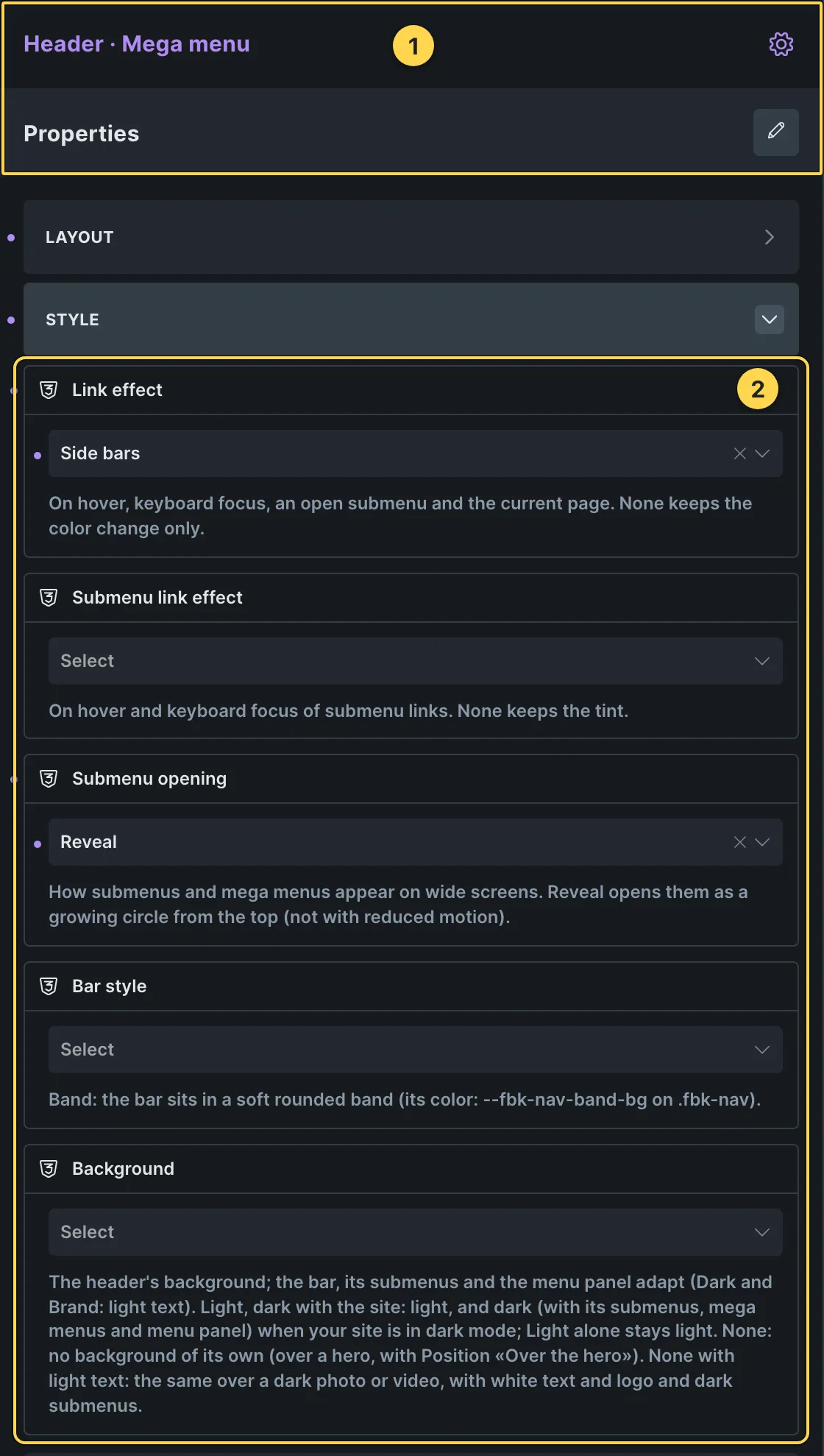
This template's own component, with its Style group open.
- Paste the template in Bricks first — see Copy and paste.
- Select Header · Mega menu (FBK Header) › Properties: Layout group: Layout, Menu panel, Phone menu text size, Position, Mega menu width, Phone submenus · Style group: Link effect, Submenu link effect, Submenu opening, Bar style, Background · Show or hide group: Hide actions.
- Select Menu card · Templates, Menu card · Design system, Menu card · Components (+6 more) (FBK Menu card) › Properties: Icon, Title, Text, Link, Badge · Show or hide group: Hide badge, Hide text, Hide icon · Style group: Layout, Icon box, Look, Tone, Shape, Hover effect, Background.
- Select Card · Get access (FBK Card) › Properties: Title, Title level, Text, Hide text · Style group: Highlight, Title size, Look, Tone, Shape, Photo overlay, Padding, Photo hover, Background · Layout group: HTML tag, Layout.
- Select Button · Buy now ×2, Button · Our story, Button · Take the tour (+3 more) (FBK Button) › Properties: Text, Link, Tone, Shadow on hover · Icon group: Icon, Icon position · Style group: Style, Size, Width, Hover effect.
- Select Links · By service, Links · Company, Links · Get to know us (FBK Link list) › Properties: Title, Title tag, Hide title · Style group: Layout, Look, Tone, Shape, Size, Hover effect, Alignment, Background.
- Select Nav · Photo (FBK Image) › Properties: Image, Alt text · Shape group: Proportion, Shape, Decoration, Border · Size and loading group: Loading, Width, Max width, Alignment · Caption group: Caption, Hide caption.
- Select Nav · Social (FBK Social) › Properties: Networks group: Facebook link, Instagram link, X link, LinkedIn link, YouTube link, TikTok link, Hide Facebook, Hide Instagram, Hide X, Hide LinkedIn, Hide YouTube, Hide TikTok · Style group: Look, Tone, Shape, Size, Show names, Hover effect, Background.
- Select Icon item · E-mail, Icon item · Phone (FBK Icon item) › Properties: Icon, Title, Title tag, Text · Show or hide group: Hide icon, Hide text · Style group: Layout, Look, Tone, Shape, Size, Alignment, HTML tag, Background.
- Select Mini card · Launch, Mini card · Guatapé (FBK Mini card) › Properties: Thumbnail, Title, Link, Title tag, Text · Show or hide group: Hide text, Hide thumbnail · Style group: Look, Tone, Shape, Accent, Hover effect, HTML tag, Background.
- Select Nav · Menu › the menu items are elements inside it: add, remove or reorder them in the Structure panel.
- Select Links · Menu By service, Links · Menu Company, Links · Menu Get to know us › Content › Menu: pick your WordPress menu (Appearance › Menus).
Finish by hand
- Hover effects (on by default): Link effect Side bars and Submenu opening Reveal
of FBK Header (classes
fbk-nav--barsandfbk-nav--open-reveal: side bars on the links, menus open as a growing circle);fbk-mcard--fillon each FBK Menu card (or set its Hover effect to Tint);fbk-btn--sweepon the buttons. - A mega menu is a Nav-Nested Dropdown with Mega menu on (CSS selector
.fbk-nav, vertical.fbk-nav). Its content is a block with the classfbk-nav__mega; inside, mix any of these: Nav · Group (a label and a grid of cards:fbk-nav__grid, fixed columns withfbk-nav__grid--2or --3), Nav · Row (fbk-nav__mega-row: a main area and a side column, 2 to 1), Nav · Columns (fbk-nav__cols: four columns,fbk-nav__cols--3or --2 for fewer), Nav · Column (fbk-nav__col: anything stacked) and Nav · Foot (fbk-nav__mega-foot: a strip at the bottom). - Components inside the mega menus, each with its options in Properties: FBK Menu card (icon, title, badge, text, link, layout, icon style, hover), FBK Link list (a title and a WordPress menu: pick the menu in its Nav Menu), FBK Card (the offer, Background Dark), FBK Mini card (posts), FBK Image, FBK Social, FBK Icon item and FBK Button.
- Mega menu width is a property of FBK Header: Container (a card as wide as the bar) or Full width (a band from edge to edge, here). Phone submenus: Slide (here: each menu comes in from the side with a back arrow) or In place.
- Nav · Panel extras (class
fbk-nav__panel-only) only shows in the phone menu: put there what the bar hides on phones. When it is there, the bar keeps only its last action button on phones. - The header is the FBK Header component: put your logo, menu and buttons in its slots (Logo, Menu, Actions; a top bar or a row over the bar goes in the Top slot, rows and scripts under it in the Bottom slot). Layout, link effect, submenu effect, menu panel, position (sticky, over the hero), bar style and background are its properties.
- This is a Bricks header template: in your site set where it shows (Template settings > Conditions), or paste its section into your own header template.
On phones
The template is designed desktop first, the Bricks default, and only changes at the two widths the library uses:
- 991px and below —
.fbk-nav,.fbk-nav__cols,.fbk-nav__mega-row(+1 more). - 767px and below —
.fbk-nav__actions,.fbk-nav__nested,.fbk-nav__panel-only(+1 more).
Those changes live in Bricks' own breakpoint fields, so you edit them where you always do: pick the breakpoint in the toolbar and the same fields follow.
Careful with the classes shared by the whole library (fbk-section, fbk-intro, the
component classes): a change there shows up in every template that uses them.
If your site's breakpoints are set up mobile first, copy the mobile-first variant of the template instead — see Copy and paste.
Accessibility
In this template, keyboard focus is visible on every interactive piece; movement is cut back
when the visitor's system asks for less motion; the state screen readers need is already set
(aria-hidden, aria-label).
What is checked on every template, and what depends on your own palette: Accessibility.
Dark mode
This section stays light whatever your site does: it does not carry the
fbk-section--auto-dark class, which is only added to templates checked on a dark
background.
How the library follows your site's color scheme: Dark mode and preview.
Replaces
- 03 - Header Mega Menu from Fancy Bricks 2.0
- 02 – Mega menu from Fancy Bricks 1.0
What happened to the old libraries, and what to do with pages already built with them: Migrating from 1.0/2.0.