Features · Tabs and media
Four features as vertical tabs (icon, name and one line); the photo of the open one fades in over the previous one.
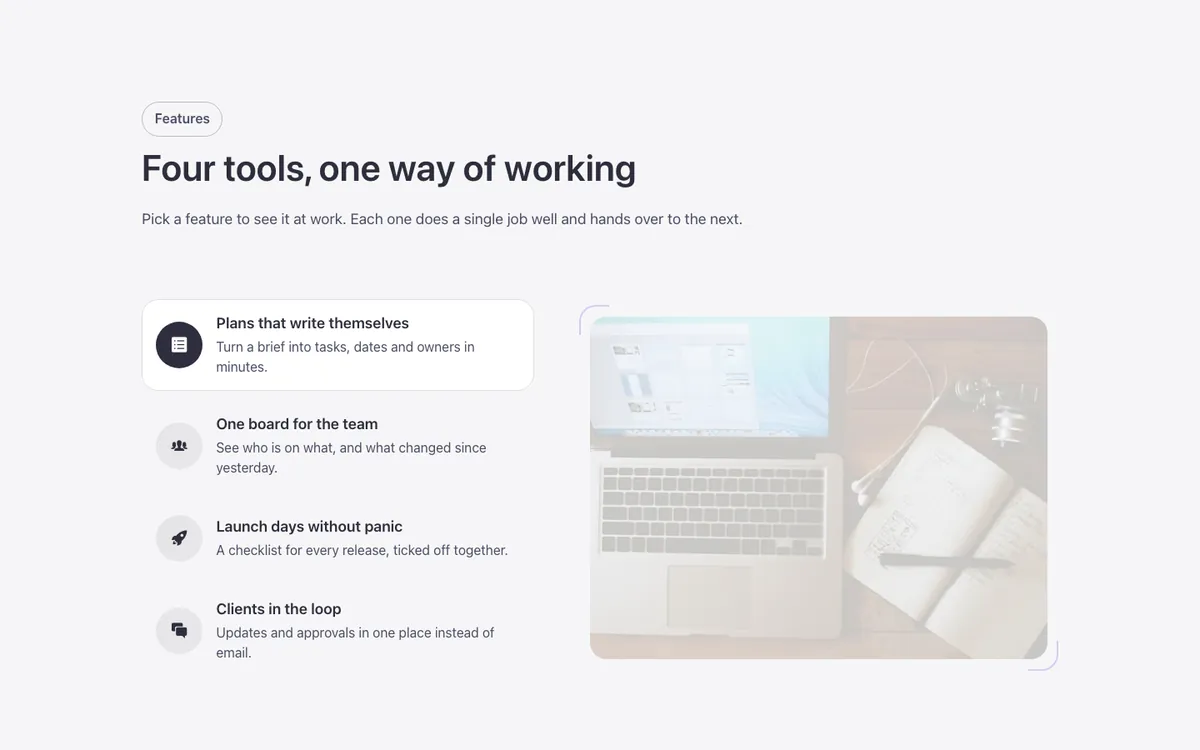
See it live: Features · Tabs and media on fancybricks.co — the live preview, and the button that copies it.
Or open the preview on its own — narrow the window to see it on a phone — and in dark mode.
Preview on the front end. Scripts don't run inside the builder, so here you only see the layout: the tabs don't turn into an accordion on phones here, and the up/down arrow keys need the script. Save and open the page to see the full result.
Structure
This is what the Bricks Structure panel shows after you paste the template. Component instances say which component they are.
Features · Tabs and media
  Container
    Intro   (FBK Intro)
    Tabs
      Tab menu
        Tab · Plans that write themselves
          Tab · Icon
          Tab · Label
            Tab · Name
            Tab · Text
        Tab · One board for the team
          Tab · Icon
          Tab · Label
            Tab · Name
            Tab · Text
        Tab · Launch days without panic
          Tab · Icon
          Tab · Label
            Tab · Name
            Tab · Text
        Tab · Clients in the loop
          Tab · Icon
          Tab · Label
            Tab · Name
            Tab · Text
      Tab content
        Pane · Plans that write themselves
          Pane · Photo   (FBK Image)
        Pane · One board for the team
          Pane · Photo   (FBK Image)
        Pane · Launch days without panic
          Pane · Photo   (FBK Image)
        Pane · Clients in the loop
          Pane · Photo   (FBK Image)
    Tabs · up and down arrow keys
    Tabs → accordion below 767px (optional, deletable)
The template also pastes a dashed note above the section, with the short version of this page. It only shows inside the builder, never on the published page — see Builder notes.
How to adjust
Every step is the same move: pick the element in the Structure panel, change its Properties.
How to adjust a template shows every one of them in a screenshot of the real builder: the Structure and Properties panels, the classes on an element, a component's style families and the field where a CSS variable goes.
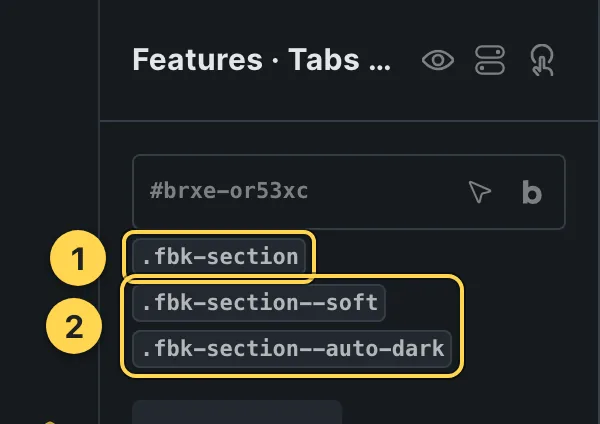
The classes this element carries, in the Bricks panel.
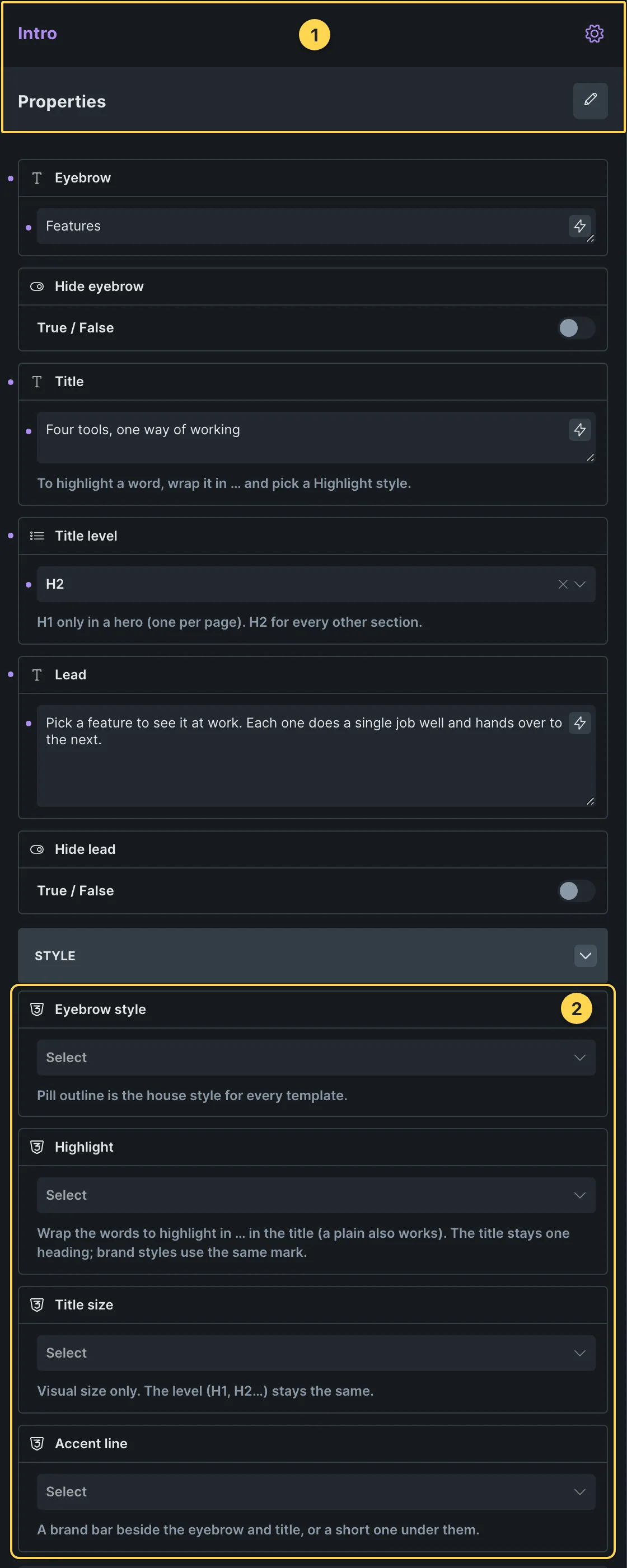
This template's own component, with its Style group open.
- Paste the template in Bricks first — see Copy and paste.
- Select Intro (FBK Intro) › Properties: Eyebrow, Hide eyebrow, Title, Title level, Lead, Hide lead · Style group: Eyebrow style, Highlight, Title size, Accent line · Layout group: Alignment, Layout, Background, Spacing · Motion group: Reveal in slider.
- Select Pane · Photo ×4 (FBK Image) › Properties: Image, Alt text · Shape group: Proportion, Shape, Decoration, Border · Size and loading group: Loading, Width, Max width, Alignment · Caption group: Caption, Hide caption.
- Select Tabs › one tab = a title and its pane, in the same order: duplicate both to add one.
- Spacing, sizes, color and timing with no property of their own: the CSS variables below.
CSS variables
These are the only values in the template meant to be changed by hand. Copy the block, paste it, edit the numbers.
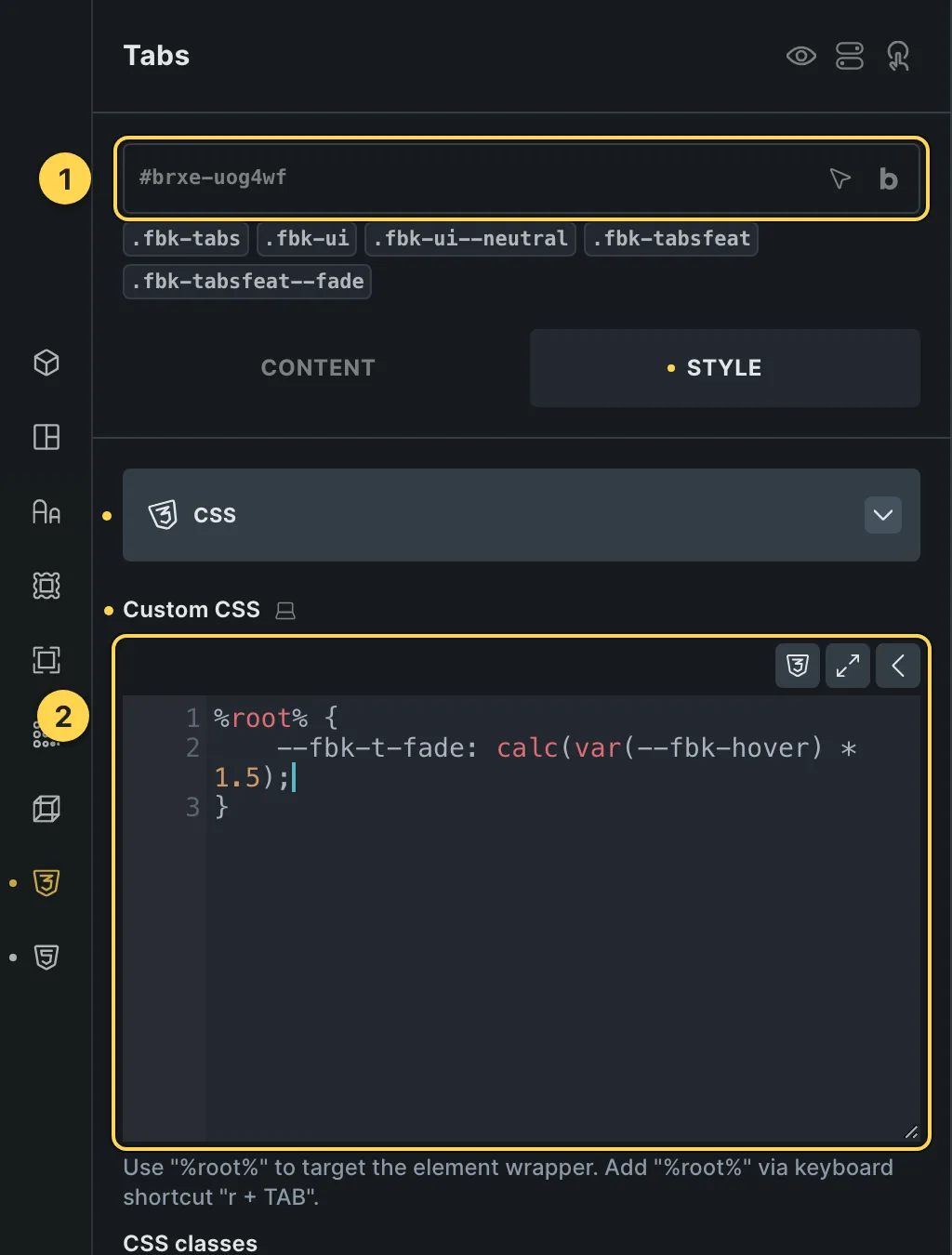
The Custom CSS field of this template's own element, with one of its variables as a real example.
/* «Tabs» · class .fbk-tabsfeat */
.fbk-tabsfeat {
  /* the photo crossfade, at a photo's pace */
  --fbk-t-fade: calc(var(--fbk-hover) * 1.5);
}
Paste the block in the element's Style → CSS field (the selector is already in it), or set the same variables on the class itself to change every copy at once. The values are your framework's variables, so they follow your site: Choosing a framework.
Requirements
- Code execution. Needs "Execute code" enabled for the role in Bricks → Settings → Custom code, or the JS block shows as plain text instead of running.
What each requirement is, and how to set it up once for the whole site: Requirements.
Finish by hand
- Each tab has an icon, a name and one line of text; each pane holds its photo (FBK Image, with its alt text). Keep tabs and panes in the same order.
- Each piece has its own class (menu, tab, icon, name, text, content, pane): edit its
styles in the panel. The open tab is %root%.brx-open in the Custom CSS of
.fbk-tabsfeat__tab; its hover tint is the native :hover background of that class; the icon fills from.fbk-tabsfeat__icon. - The crossfade between photos is the class
.fbk-tabsfeat--fadeon the Tabs element: remove it for an instant change. Its time is--fbk-t-fadeon.fbk-tabsfeat. - On phones the tabs become an accordion (each photo under its tab). The arrow-key and accordion scripts need "Execute code" enabled for the role; delete the accordion block if you do not want it.
On phones
The template is designed desktop first, the Bricks default, and only changes at the two widths the library uses:
- 991px and below —
.fbk-intro. - 767px and below —
.fbk-tabsfeat,.fbk-section.
Those changes live in Bricks' own breakpoint fields, so you edit them where you always do: pick the breakpoint in the toolbar and the same fields follow.
Careful with the classes shared by the whole library (fbk-section, fbk-intro, the
component classes): a change there shows up in every template that uses them.
If your site's breakpoints are set up mobile first, copy the mobile-first variant of the template instead — see Copy and paste.
Accessibility
In this template, keyboard focus is visible on every interactive piece; movement is cut back
when the visitor's system asks for less motion; the state screen readers need is already set
(aria-hidden, aria-label).
What is checked on every template, and what depends on your own palette: Accessibility.
Dark mode
With your site in dark mode this section turns dark too — the class fbk-section--auto-dark
on the section does it. Remove the class to keep it light.
Its background is a modifier on the section, so you can swap it for any of the ones the
template is checked with: fbk-section--soft, fbk-section--light, fbk-section--dark.
How the library follows your site's color scheme: Dark mode and preview.