CTA · Popup
A welcome popup: a photo on one side and, on the other, a short offer, an email field with its button and a way to say no. It opens after a few seconds or when the visitor is about to leave.
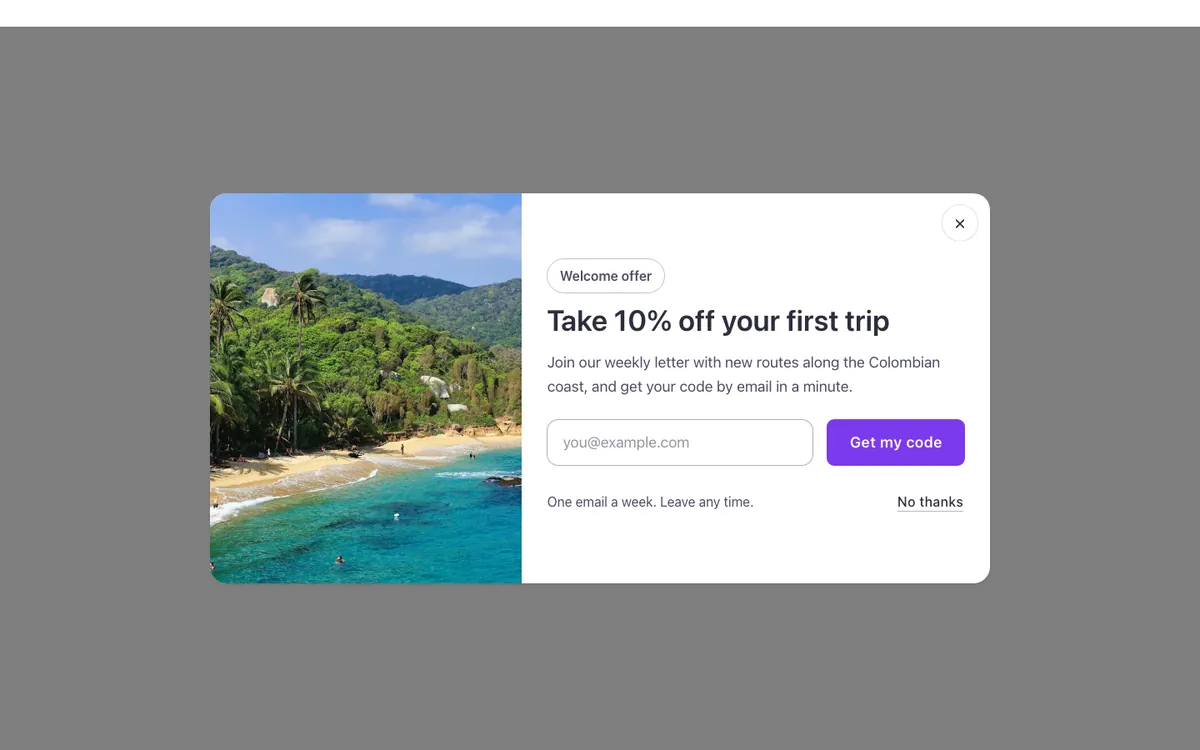
See it live: CTA · Popup on fancybricks.co — the live preview, and the button that copies it.
Or open the preview on its own — narrow the window to see it on a phone — and in dark mode.
Structure
This is what the Bricks Structure panel shows after you paste the template. Component instances say which component they are.
Popup · Welcome offer
  Photo
  Body
    Close
      Close icon
    Intro   (FBK Intro)
    Form wrap
      Form
    Foot
      Fine print
      No thanks · Closes the popup
        No thanks   (FBK Action button)
The template also pastes a dashed note above the section, with the short version of this page. It only shows inside the builder, never on the published page — see Builder notes.
FBK Action button
This template is built on its own component, FBK Action button: select it in the Structure panel and everything below is in its Properties.
A real <button> for popups and interactions (Interactions → Click). No link.
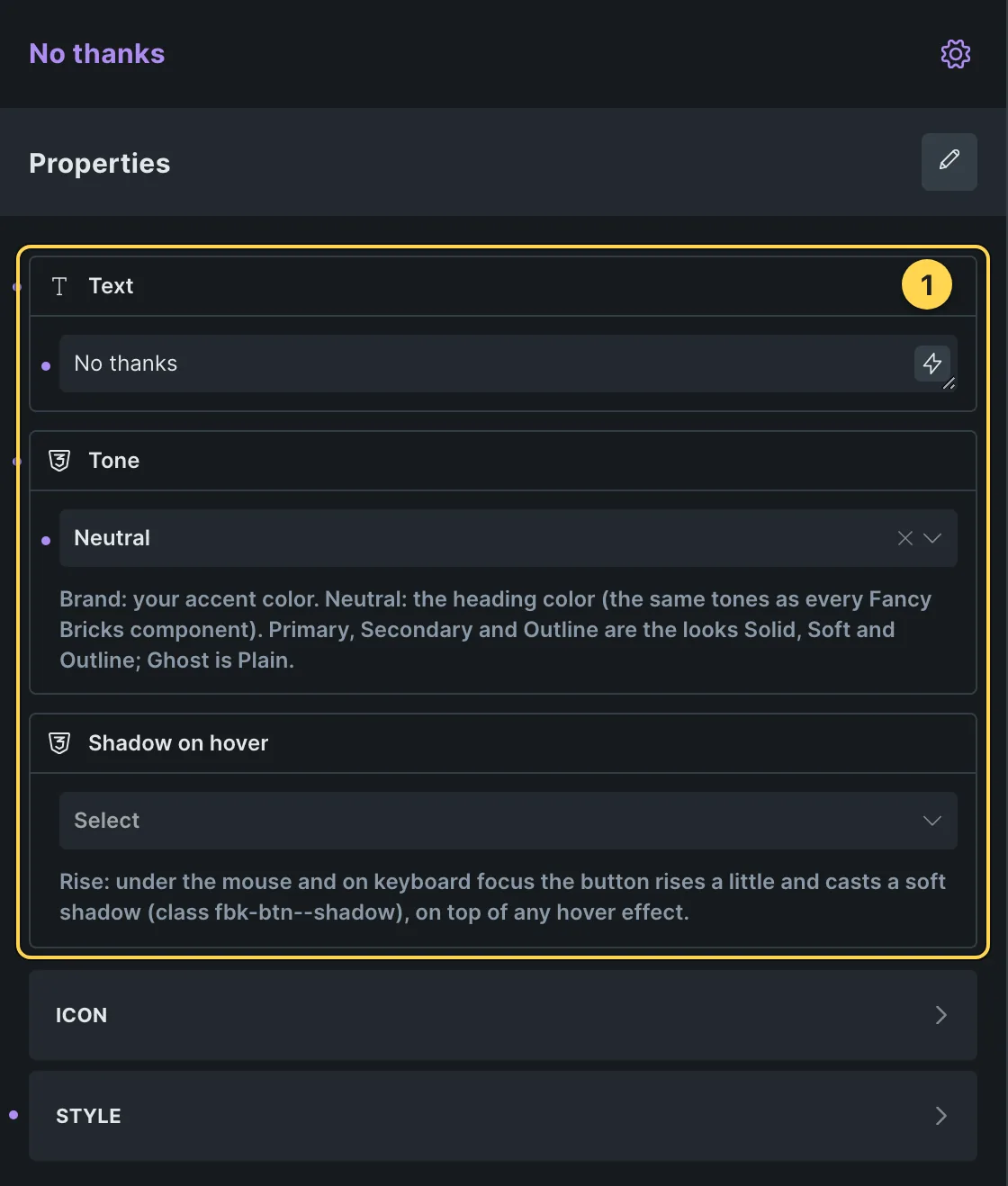
FBK Action button in the Bricks panel: its own properties are at the top.
- Text
- Tone: Brand: your accent color. Neutral: the heading color (the same tones as every Fancy Bricks component). Primary, Secondary and Outline are the looks Solid, Soft and Outline; Ghost is Plain.
- Shadow on hover: Rise: under the mouse and on keyboard focus the button rises a
little and casts a soft shadow (class
fbk-btn--shadow), on top of any hover effect.
Icon
- Icon
- Icon position
Style
- Style
- Size
- Width
- Hover effect: Pulse is a non-stop ring around the icon: for one standout call to action, not every button. Glow replaces the color change of the style: the circle is the hover.
How to adjust
Every step is the same move: pick the element in the Structure panel, change its Properties.
How to adjust a template shows every one of them in a screenshot of the real builder: the Structure and Properties panels, the classes on an element, a component's style families and the field where a CSS variable goes.

The classes this element carries, in the Bricks panel.

This template's own component, with its Style group open.
- Paste the template in Bricks first — see Copy and paste.
- Select Intro (FBK Intro) › Properties: Eyebrow, Hide eyebrow, Title, Title level, Lead, Hide lead · Style group: Eyebrow style, Highlight, Title size, Accent line · Layout group: Alignment, Layout, Background, Spacing · Motion group: Reveal in slider.
- Select No thanks (FBK Action button) › Properties: Text, Tone, Shadow on hover · Icon group: Icon, Icon position · Style group: Style, Size, Width, Hover effect.
- Select Form › Content › Fields (add, remove, required), Submit button and Actions (Email: recipient and subject; success message).
- Spacing, sizes, color and timing with no property of their own: the CSS variables below.
CSS variables
These are the only values in the template meant to be changed by hand. Copy the block, paste it, edit the numbers.
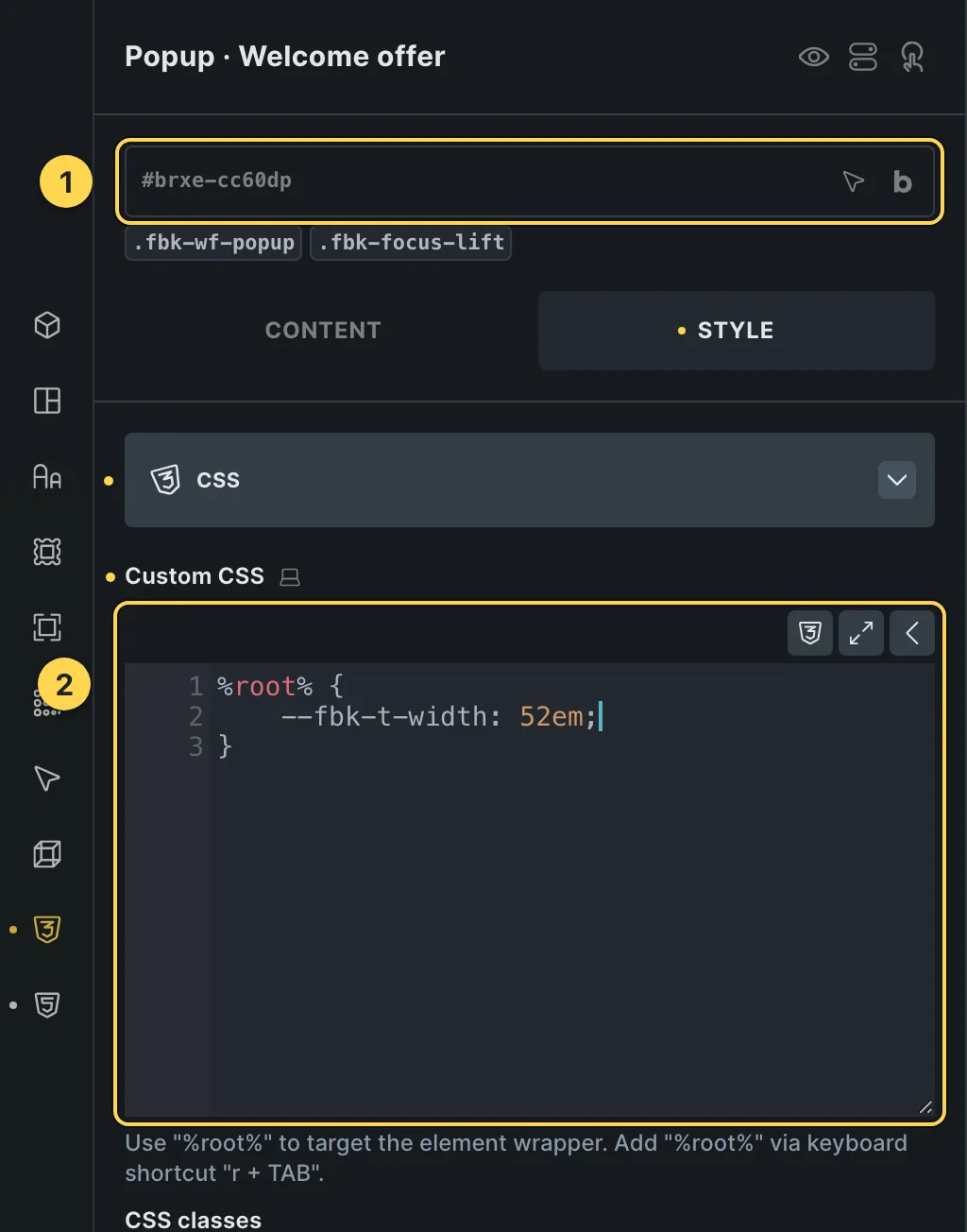
The Custom CSS field of this template's own element, with one of its variables as a real example.
/* «Popup · Welcome offer» · class .fbk-wf-popup */
.fbk-wf-popup {
  /* Widest the window gets */
  --fbk-t-width: 52em;
}
Paste the block in the element's Style → CSS field (the selector is already in it), or set the same variables on the class itself to change every copy at once. The values are your framework's variables, so they follow your site: Choosing a framework.
Finish by hand
- This is a Bricks template of type Popup: set where it shows in Template settings › Conditions (for example the whole site, or the shop only).
- When it opens: Template settings › Popup › Interactions. It comes with two: Content loaded with a 6 s delay, and Mouse leave window (the visitor is about to leave); both Show element with Target Self. Popup › Show popup limits keeps it to once per session. Change the delay or remove one of them.
- It closes with Esc, a click on the backdrop, the close button and No thanks
(Interactions on the close button and on the block around No thanks: Click › Hide
element › CSS selector .brx-popup:has(
.fbk-wf-popup)). If you rename the main class, change the selector in both. - The form is the Bricks Form element in the Fancy Bricks house style (class
fbk-form: one row, the label kept for screen readers (fbk-form--inline), primary submit with the Sweep hover): set its fields, actions and messages in the Form element. While a field has focus the field rises a little and casts a shadow (classfbk-form--lift); remove the class for a still form. Other looks: addfbk-form--line(underline) orfbk-form--float(floating label). To send the code, add the Bricks Form action Email with the code in the confirmation, or connect your email service (Mailchimp, a webhook…) in Actions. - The panel is
.fbk-wf-popup(--fbk-t-widthis the widest it gets); it also clears the padding and white background of Bricks' popup box, so the popup settings for padding and background are not needed. - Motion: the panel rises a little while the field has focus (
fbk-focus-lift), the button sweeps, No thanks draws its line and the close button fills. Opening and closing are Bricks' own; nothing else animates.
On phones
The template is designed desktop first, the Bricks default, and only changes at the two widths the library uses:
- 991px and below —
.fbk-intro. - 767px and below —
.fbk-wf-popup,.fbk-wf-popup__photo.
Those changes live in Bricks' own breakpoint fields, so you edit them where you always do: pick the breakpoint in the toolbar and the same fields follow.
Careful with the classes shared by the whole library (fbk-section, fbk-intro, the
component classes): a change there shows up in every template that uses them.
If your site's breakpoints are set up mobile first, copy the mobile-first variant of the template instead — see Copy and paste.
Accessibility
In this template, keyboard focus is visible on every interactive piece; movement is cut back
when the visitor's system asks for less motion; the state screen readers need is already set
(aria-hidden, aria-label, aria-modal).
What is checked on every template, and what depends on your own palette: Accessibility.
Dark mode
This section stays light whatever your site does: it does not carry the
fbk-section--auto-dark class, which is only added to templates checked on a dark
background.
How the library follows your site's color scheme: Dark mode and preview.