How to adjust a template
Every template page tells you what it does. This page is the one place that explains how you actually change anything — select a piece, find its controls, and know where a value lives. Learn it once and it works the same way on every Fancy Bricks template, in any framework.
The screenshots below are the real Bricks builder, all taken on the same template ("Contact · Card"), so you can follow them in order on any template you have open.
Select the element, then change it
In Bricks' Structure panel (top right of the builder), the page is a tree. Click an item there — or click the piece directly in the canvas — to select it; the selected item highlights in both places at once. Its settings then appear in the Properties panel on the left.
 1 The Structure tree: where you pick the piece. 2 The Properties
panel: where you change that piece's settings. This pair is the whole gesture
— every instruction in this documentation is "select X, then set Y".
1 The Structure tree: where you pick the piece. 2 The Properties
panel: where you change that piece's settings. This pair is the whole gesture
— every instruction in this documentation is "select X, then set Y".
Fancy Bricks elements are named by what they do, not by their tag — "Chat button", "Intro · Actions slot", "Contact · Email" — so you can find the right one without knowing the markup underneath. A template's own page also lists exactly which pieces to select for each setting, under "Where to change it".
A plain Bricks element (a heading, a block, a section) groups its settings under Content and Style — Layout, Typography, Background, Border… Jump between groups with the small icon rail on the panel's left edge, instead of scrolling past everything.
The classes on an element
Every piece you copy in already carries its classes — you'll see them as
chips under the element's name, written in
BEM with the fbk- prefix: one base class that is
the piece, plus pattern modifiers that change it.
 1 The base class (
.fbk-section). It carries the piece's structure and
its default values — leave it alone. 2 The modifiers (--light,
--clip-all, --auto-dark). Each one adds one behavior on top, and each can
be removed with the × on its chip without touching anything else.
Removing a modifier drops that modifier's effect from this element only;
the class itself still exists for every other element using it. So
--auto-dark off this one section stops this section following your site's
dark mode, and changes nothing else on the site.
You don't need to add any of these by hand — they come with the template.
A component and its style families
A Fancy Bricks component (FBK Intro, FBK Card, FBK Button, FBK Social…) is not a plain element: selecting one shows its own named properties instead of Bricks' generic groups.
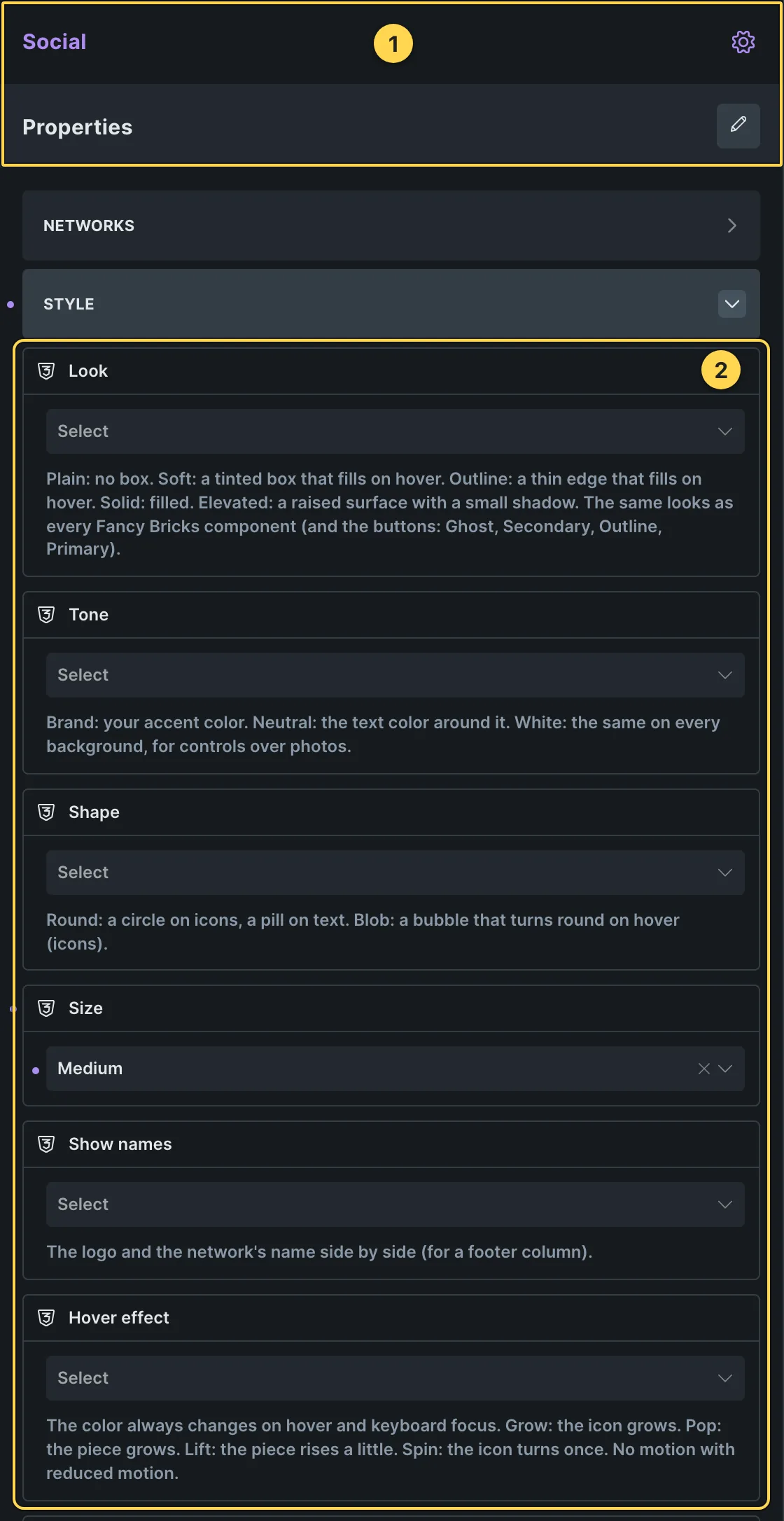 1 How you know it's a component: the name shows in violet, with the
component icon beside it, and a Properties bar underneath. 2 The
Style group, which holds the style families — the same axes, with the
same names, in every component. The extra rows (here "Show names") are that
component's own options.
1 How you know it's a component: the name shows in violet, with the
component icon beside it, and a Properties bar underneath. 2 The
Style group, which holds the style families — the same axes, with the
same names, in every component. The extra rows (here "Show names") are that
component's own options.
The families are always Look, Tone, Shape, Size and Hover effect, in that order. They're not a free color picker — each is a closed set of options, so every piece in the library stays consistent. See Style families for what each option actually does.
On buttons the same axes are named Style, Tone, Size, Width and Hover effect — "Style" is the Look of a button.
Set them from Properties, not from CSS: changing "Hover effect" to "Sweep" on a button changes a dropdown, nothing else — no class to find, no variable to look up.
Where to paste a CSS variable
Spacing, timing and sizing that don't have their own dropdown are CSS custom
properties instead (every --fbk-* a template uses is listed on that
template's own page, and in its builder note, under its variables). There are
two different places to set one, and they behave differently.
The element's own Style → CSS field. Select the element, open the CSS group in Properties, and write the declaration in Custom CSS. This only affects this one copy of the piece.
 1 The active selector says
 #brxe-…, an element ID: what you type goes
on this element only. 2 The Custom CSS field. It arrives empty — you
write the %root% { } block yourself (%root% means "this element's
wrapper"; typing r then Tab inserts it for you), and your
declarations go inside it.
The global class itself. The same variable set on the class changes
every element carrying that class, on every page. Pick the class instead of
the element in that same selector field (1) — or edit it in Bricks' class
manager — and the Style controls then write to the class. Fancy Bricks' own
classes (fbk-section, fbk-card, fbk-ccard…) already carry the
template's default values this way, which is why the panel shows them as
"inherited".
Use the element's own field for a one-off tweak on a single instance. Edit the class itself when the change should apply everywhere that class is used — a component you've copied onto several pages, for example.
Common problems
- I don't see a Style group on the element I selected. You selected a plain Bricks element, not a Fancy Bricks component — its controls are grouped differently (Content, Layout, Typography…), see "Select the element, then change it" above. If you meant to style the component, select its wrapper instead: in the Structure panel it's the item whose name shows in violet.
- I pasted a variable and nothing happened. Check three things: that the
declaration is inside a
%root% { }block (a bare--fbk-…: …;with no selector does nothing), that you're in the right one of the two places above (the element's own field only works for that one instance), and that the variable belongs to the class you edited — a variable declared on a descendant class doesn't inherit back up the tree. - I can't find where a value is set. Open the template's own page: every Fancy Bricks template documents its exact variables and "Where to change it" steps, generated straight from its builder note — see Builder notes.