Preview: Background vs Site mode
Every template page on fancybricks.co has a live preview with a bar of controls above it. Two of them look alike but do different things: Background changes one section, Site mode changes the whole site.
The preview bar
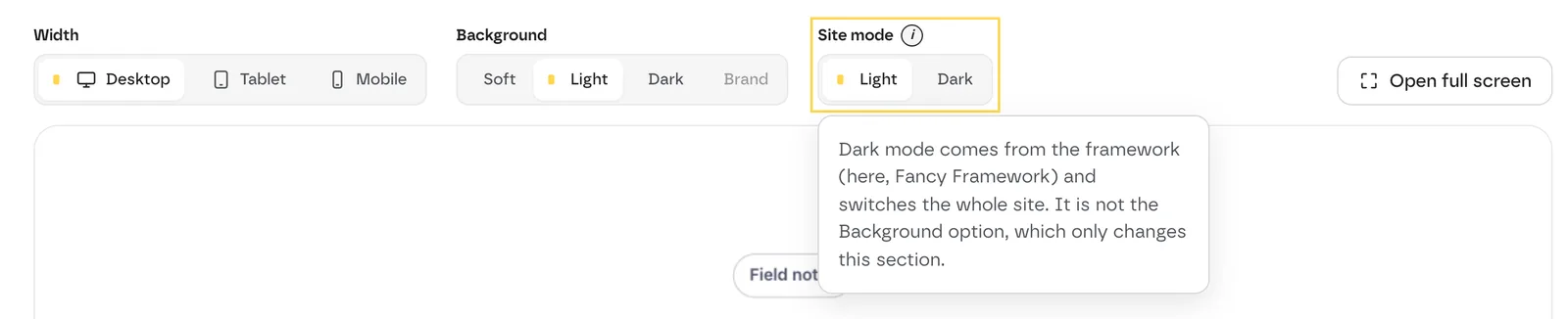 The preview bar. The i next to Site mode opens the note that tells it
apart from Background.
The preview bar. The i next to Site mode opens the note that tells it
apart from Background.
- Width — Desktop, Tablet or Mobile.
- Background — Light, Soft, Dark or Brand.
- Site mode — Light or Dark. Only on templates marked Dark mode ready.
- Open full screen — the preview at full size.
Background: this section only
Background puts this section on a light, soft, dark or brand background. It only offers the backgrounds the template was designed for: the others show as unavailable, with "Not designed for this background".
- In the preview bar, click a Background: Light, Soft, Dark or Brand.
- The preview repaints that one section.
- Click Copy template: the copy uses the background you picked.
 Background: Light (left) and Dark (right). Only this section changes.
The background you pick is also what you copy. Copy the template with Dark selected and it pastes on the dark background ("Copied with the Dark background…"), whatever your site's mode.
Site mode: the whole site
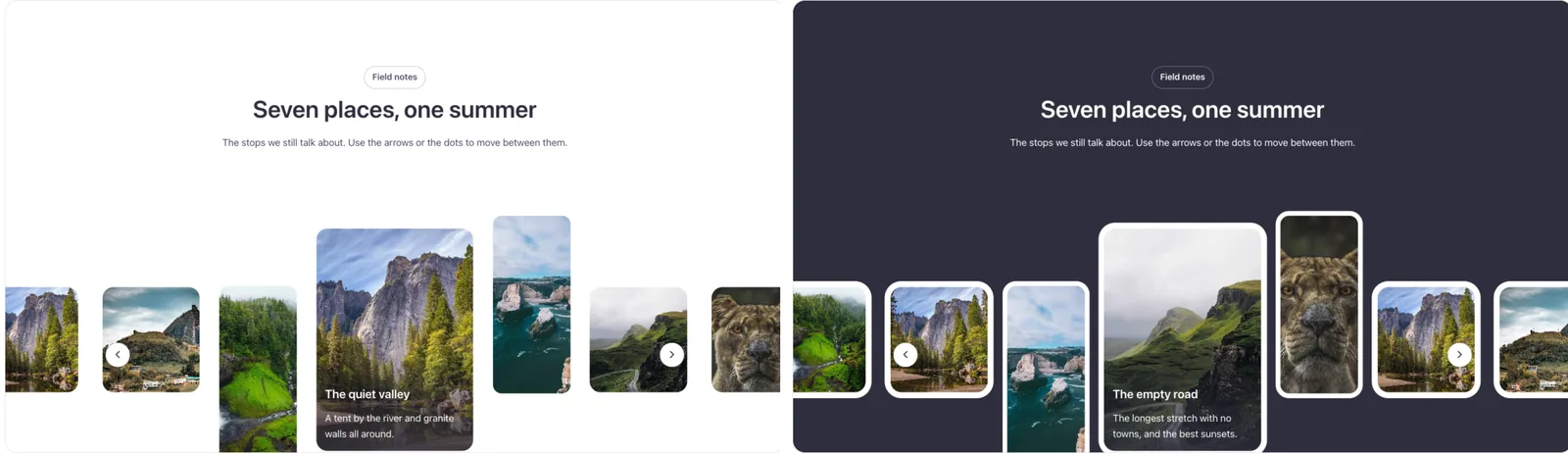
Site mode shows the template with the framework's dark mode on — the sitewide switch your visitors can flip, not a setting of this section. Light and Soft sections follow it and switch to a dark surface; Dark and Brand sections stay as they are, since they're already dark. See Dark mode and preview for how a template follows it.
The control only appears on templates marked Dark mode ready. The preview measures it with Fancy Framework: "Dark mode comes from the framework (here, Fancy Framework) and switches the whole site. It is not the Background option, which only changes this section."
 Site mode: Light (left) and Dark (right), on the Soft background. The section
follows the framework's dark mode.
Site mode: Light (left) and Dark (right), on the Soft background. The section
follows the framework's dark mode.
Site mode doesn't change what you copy: it only previews how the section looks when your site is dark.
Quick comparison
| Background | Site mode | |
|---|---|---|
| Changes | This section | The whole site |
| Options | Light, Soft, Dark, Brand (the ones the template was designed for) | Light, Dark |
| Shown on | Templates with background options | Templates marked "Dark mode ready" |
| Changes what you copy | Yes | No |