Components and favorites
Copy a component on its own
Components travel inside the templates, but each one also has its own page under Components on fancybricks.co, with all its variations live.
- Open the component's page, for example FBK Button.
- Check the copy bar: framework and approach work as on the templates (Choose your framework and approach).
- Click Copy component. It copies one instance of that component, as in the first example on the page, with the classes its options use.
- Paste it in Bricks with Ctrl+V or Cmd+V, and change anything from the panel.
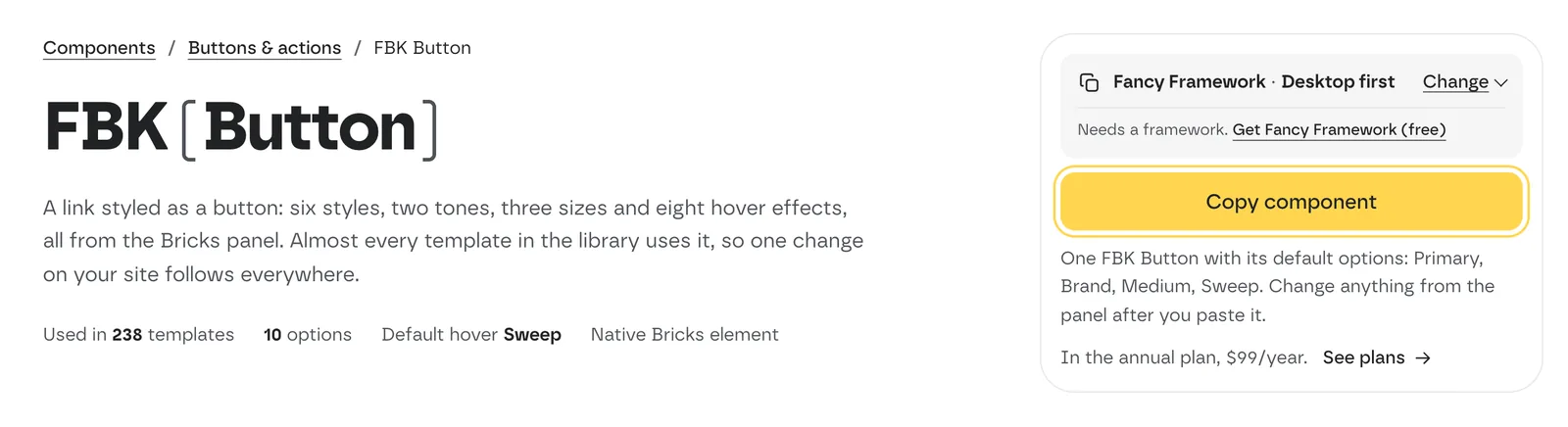 A component page. The line under Copy component says exactly what you
get.
Copying a component on its own needs a paid plan: "Components come with the full library." See Account and plans.
For what each component does, see Components.
Favorites
-
Click the heart on a template card in the library (or Add to favorites on the template's page). The heart fills in.
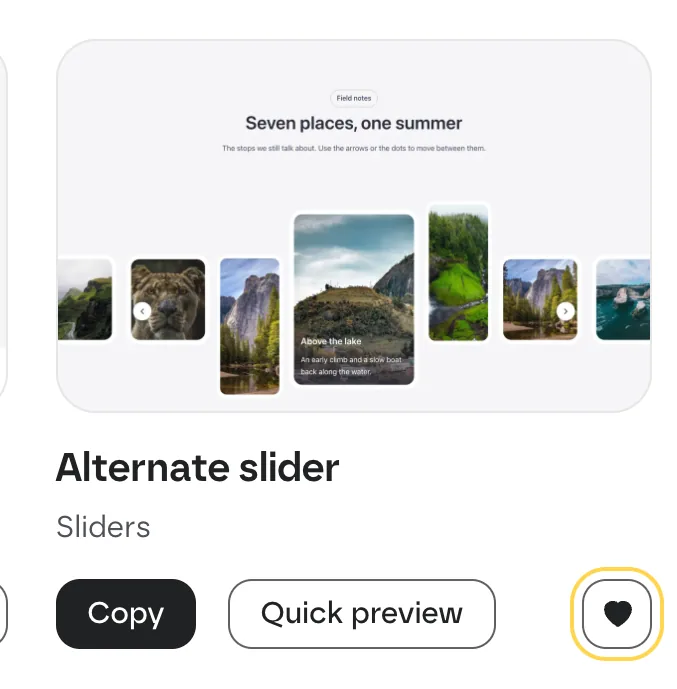 A saved template: the heart is filled.
-
To see only your favorites in the library, tick Only favorites under Show in the filters. A chip with the same name appears above the results: click its × to show everything again.
 The Only favorites filter.
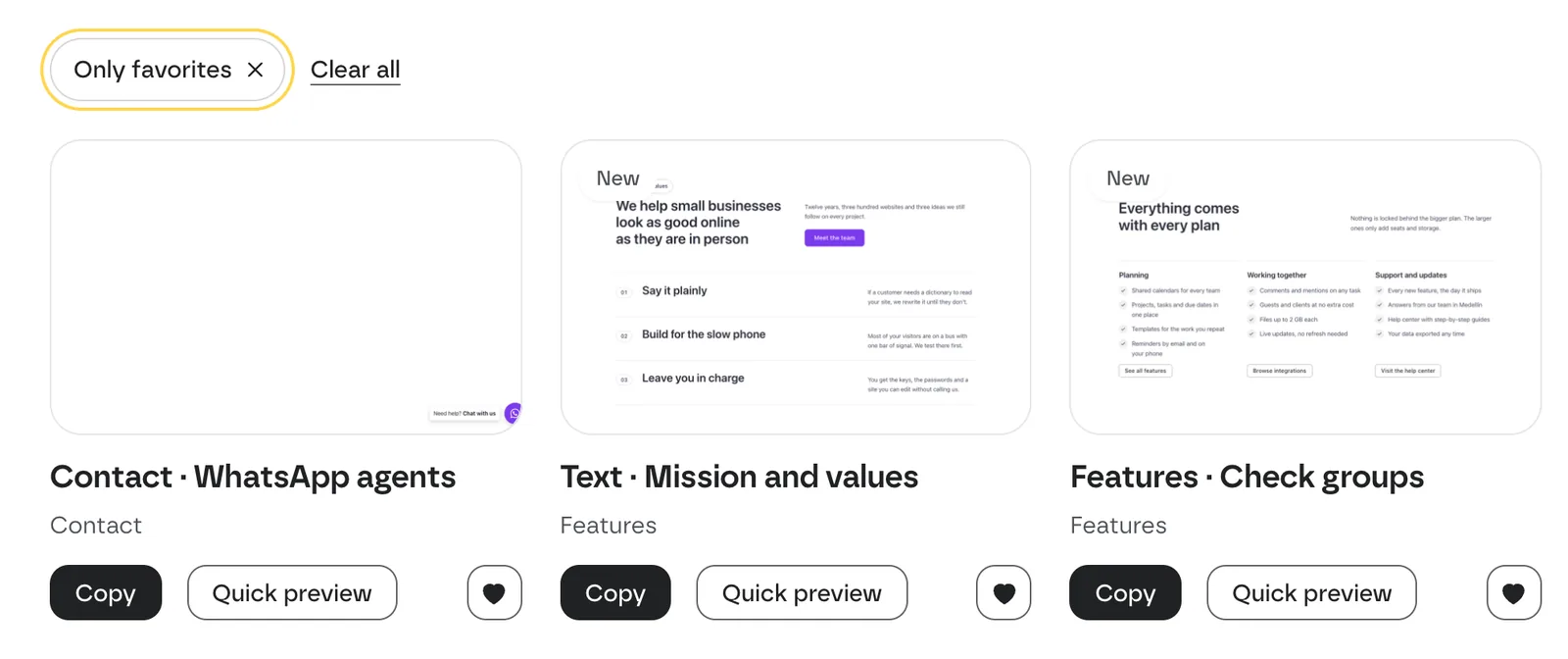 The library filtered to your favorites.
-
Your favorites are also in My account › Favorites (open it), where you can remove one with the heart again.
Logged out, favorites are saved on this browser only. Log in to keep them on every device.
Copy again
My account › Recently copied lists the templates you copied last, with the framework and approach of each copy. Copy again copies the template with the same framework, approach and background you used. Show all copies expands the list.