Builder notes
This page is about what happens inside the Bricks editor, as opposed to what a template actually does — for that, see the template's own page or Style families. Every Fancy Bricks template also has its own short note printed right inside the builder (only there — it never shows on the published page), covering the same three things this page explains in general: what's different in the editor, where to change each setting, and what's left for you to finish by hand.
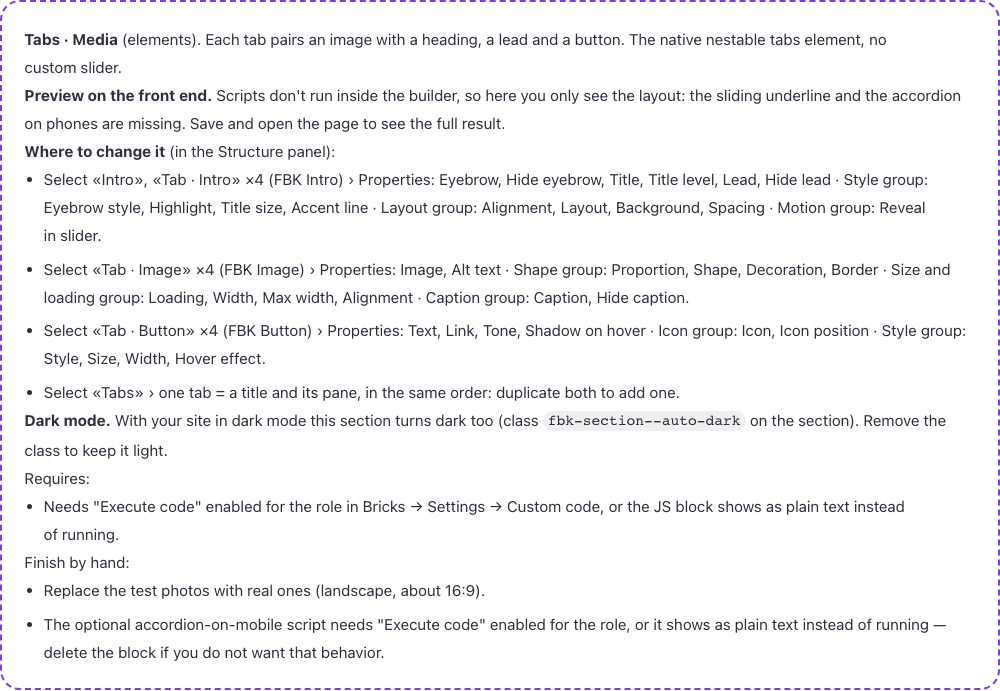 The note for "Tabs · Media" — a dashed box at the top of the canvas, visible
only while you're editing (condition: no real page is using this template
yet).
The note for "Tabs · Media" — a dashed box at the top of the canvas, visible
only while you're editing (condition: no real page is using this template
yet).
The note is just a text element with one condition on it ("this is the template itself being edited, not a real page"), so it disappears the moment the template is in use on an actual page or placed inside another one — you only ever see it here, while building.
What never runs inside the builder
Bricks doesn't execute a code element's JavaScript while you're editing — only on the published page. For a template marked "Requires code execution", that means inside the builder you only see its layout: sliders don't move, autoplay doesn't start, counters don't count up, accordions may not collapse. This is expected — it isn't broken. Save and open the front end to see the real result.
Each such template's own builder note says exactly what's missing for that template — a slider's motion, a map's tiles, a counter animating from zero — instead of a generic warning.
Where to change something
Every Fancy Bricks component (FBK Intro, FBK Card, FBK Button…) exposes its settings in the Structure panel: select the component, open its Style group in Properties, and its style-family controls (Look, Tone, Shape, Size, Hover effect) are grouped there, always in that order. The note itself lists which piece to select for every setting the template has — see "Where to change it" in the screenshot above.
Spacing, sizing, color and timing that don't have their own dropdown are set
through CSS custom properties instead — each template's own page lists the
exact --fbk-* variables it uses and what each one does, so you don't need
to read its CSS to find them. Set them from the element's own Style → CSS
field, or on the class itself — see How to adjust a
template for the full mechanics and what the difference
means.
Dark mode in the builder
A section that follows your site's dark mode (class fbk-section--auto-dark)
only actually switches when your site is set to dark — the builder canvas
itself doesn't preview this live. To check it, publish the page and toggle
your site's dark mode on the front end. Remove the fbk-section--auto-dark
class from a section if you want it to always stay light.
Checking a page properly
- Save and open the published page, not just the builder preview — some behavior genuinely only runs there (see above).
- Check it at your mobile breakpoint, not only desktop.
- If the template requires code execution, confirm your role actually has Execute code enabled (see Requirements) — otherwise you'll see the script as visible text even on the front end.
- If a section should follow dark mode, toggle your site's dark mode and look again.
Common problems
- A template "doesn't work" in the builder — slider frozen, counter stuck at 0, map blank. Check whether its card says "Requires code execution." If so, this is expected inside the builder; publish the page.
- The code shows up as plain text on the page, front end included. Your role doesn't have Execute code enabled yet — see Requirements.
- A section isn't turning dark with the rest of the site. Either it
doesn't carry
fbk-section--auto-dark(by design — some content, like photos, stays light on purpose), or your site's dark mode isn't actually on for that preview. Check on the published page.