Connect your agent
You connect once per site, from the Fancy Bricks settings. The plugin checks what your site needs, tells you what's missing and gives you the configuration to paste in your agent.
Before you start
- The Fancy Bricks plugin, installed, with your license verified.
- Bricks 2.4 or newer.
- HTTPS on the site.
- Claude Code, Cursor or another MCP app on your computer.
Step by step
-
Open the connection checks. In your site's admin, go to Bricks › Fancy Bricks and pick Connect your AI in the side menu. You'll see four checks, each one Ready, Needs you or Blocked:
Check What it is WordPress Abilities API The part of WordPress that lets plugins offer tools to AI apps. MCP Adapter plugin Publishes those tools so your agent can reach them. Bricks abilities Bricks' own AI tools. Fancy Bricks uses them to write in your pages. Application password The password your agent signs in with. Your normal password never leaves your browser. 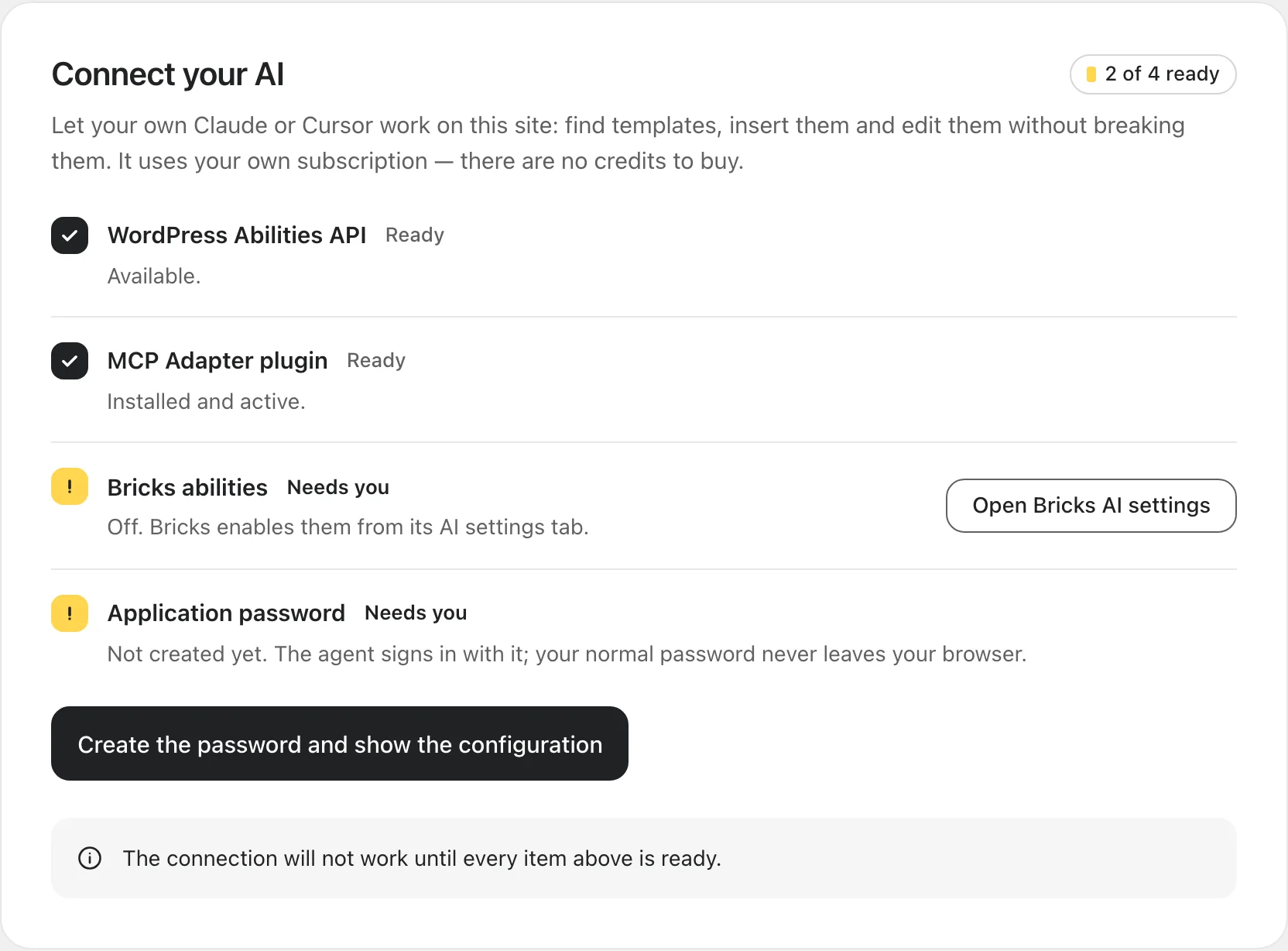 Connect your AI. Here the Bricks abilities and the password still need you.
-
Install the adapter and turn on the Bricks abilities. If either says Needs you, click Open Bricks AI settings. Bricks installs the MCP Adapter and turns its abilities on from its own AI settings tab. Come back to Bricks › Fancy Bricks when you're done: both should say Ready.
-
Create the password. Click Create the password and show the configuration. WordPress creates an application password called Fancy Bricks MCP for your user, and the plugin shows the configuration your agent needs.
It's shown only onceCopy it before you leave the page. WordPress keeps only a fingerprint of the password, so the configuration can't be shown again. If you lose it, create a new password from the same place.
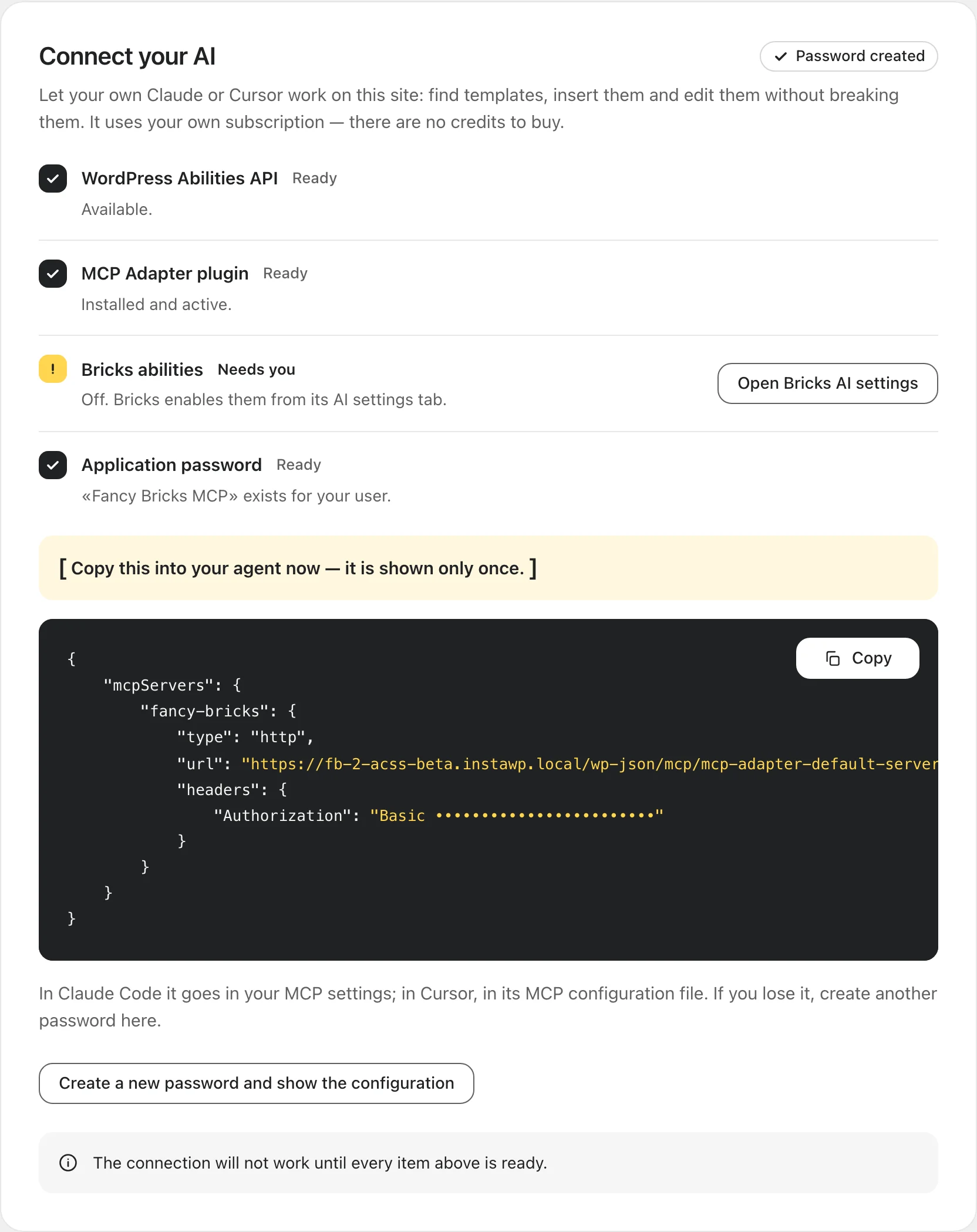 The configuration, with Copy. It includes your site's address and the
password.
-
Paste it in your agent.
- Claude Code: save it as
.mcp.jsonin the folder where you work with Claude Code, or add it to your Claude Code MCP settings. - Cursor: paste it in
.cursor/mcp.jsonin your project, or in Cursor's global MCP settings. - Other MCP apps: use the address and the
Authorizationheader from the configuration, in whatever form the app asks for them.
Restart or reload the agent so it picks up the new connection.
- Claude Code: save it as
-
Check it works. Ask your agent: "What Fancy Bricks tools do you have?" It should list tools to find, insert, look at, change and check templates, next to Bricks' own.
Who your agent acts as
The password belongs to the WordPress user who created it, and your agent can do exactly what that user can do. Create it with a user that edits the pages you want the agent to work on.
To cut the connection, revoke the password: Users › Profile › Application Passwords, then Revoke next to Fancy Bricks MCP.
Which version of the templates it uses
Your agent doesn't need to be told your framework: it asks the plugin. The plugin detects whether the site uses Fancy Framework, Automatic.css or Core Framework, and you choose desktop first or mobile first.
If what you've pasted doesn't match what the plugin detects, change it in Bricks › Fancy Bricks › Template library. The line under the menus says which version your agent will fetch.
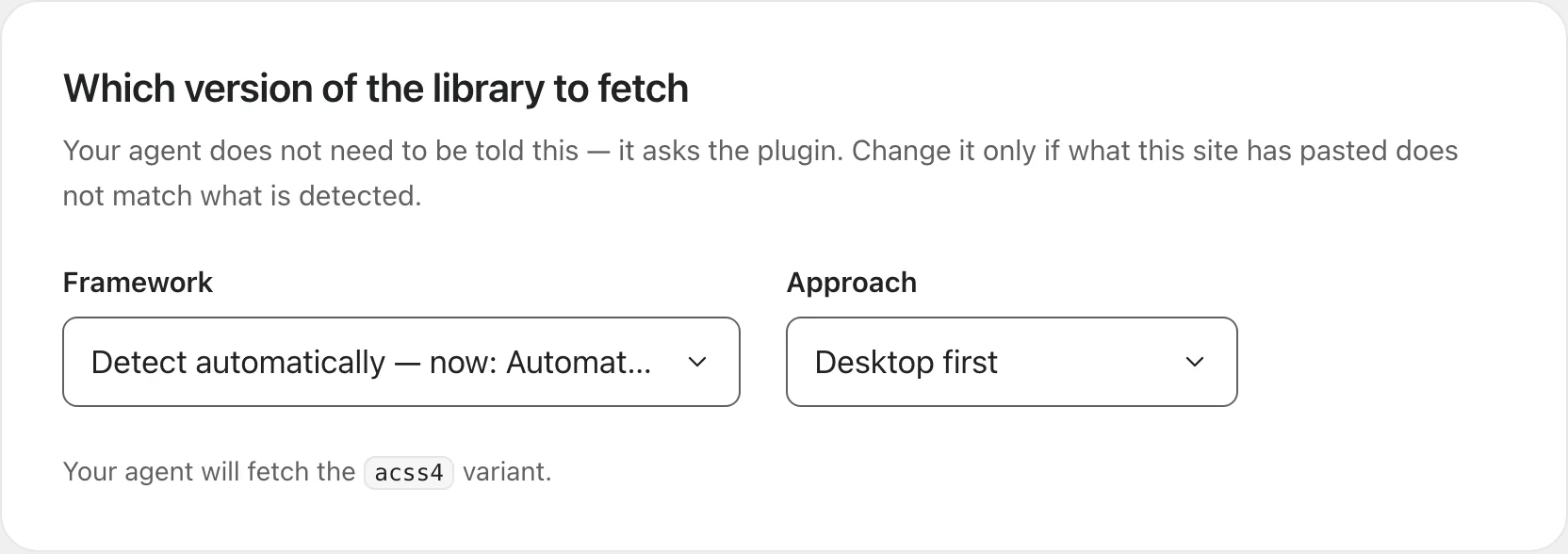 Template library. With two frameworks active at once, the plugin asks you to
pick the one the site really uses.
If a check says Blocked
Blocked means the plugin can't fix it from here. The message under the check says why:
- "This version of Bricks does not register abilities." Update Bricks to 2.4 or newer.
- "Switched off by a constant in this site." A line in
wp-config.phpturns the Bricks abilities off. Remove it, or ask whoever manages the site. - "Application passwords are switched off on this site." The site isn't on HTTPS, or a security plugin or a filter turns application passwords off. Turn on HTTPS, or allow application passwords in that plugin.
More in Common problems.