Your account
Everything about your account lives on My account: your plan, the plugin download, your favorites and your copy settings.
Log in or register
- Open My account.
- If you aren't logged in, the page shows two tabs: Log in and Create account.
- Fill in the tab you need. After either one, the page reloads into your account.
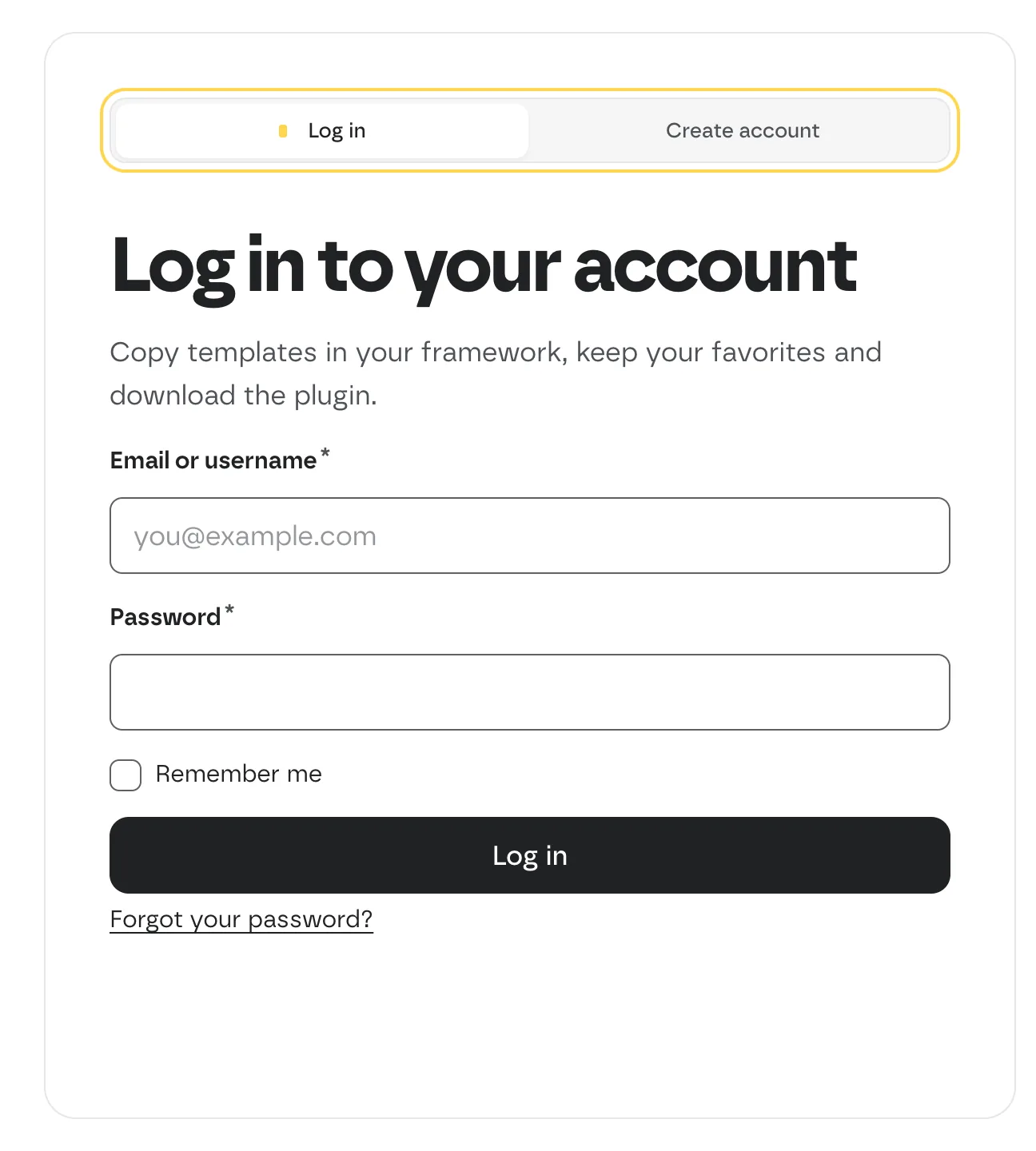 Logged out, My account shows the login and register panel.
Forgot your password? Use Reset your password: enter the email of your account and you'll get a link to choose a new one.
The four sections
The side menu has Overview, Favorites, Copy history, Plan and billing, Fancy Bricks plugin, Settings, Help and Log out. Favorites, Copy history and Help are parts of the Overview.
Overview
Your templates, favorites and settings, in one place:
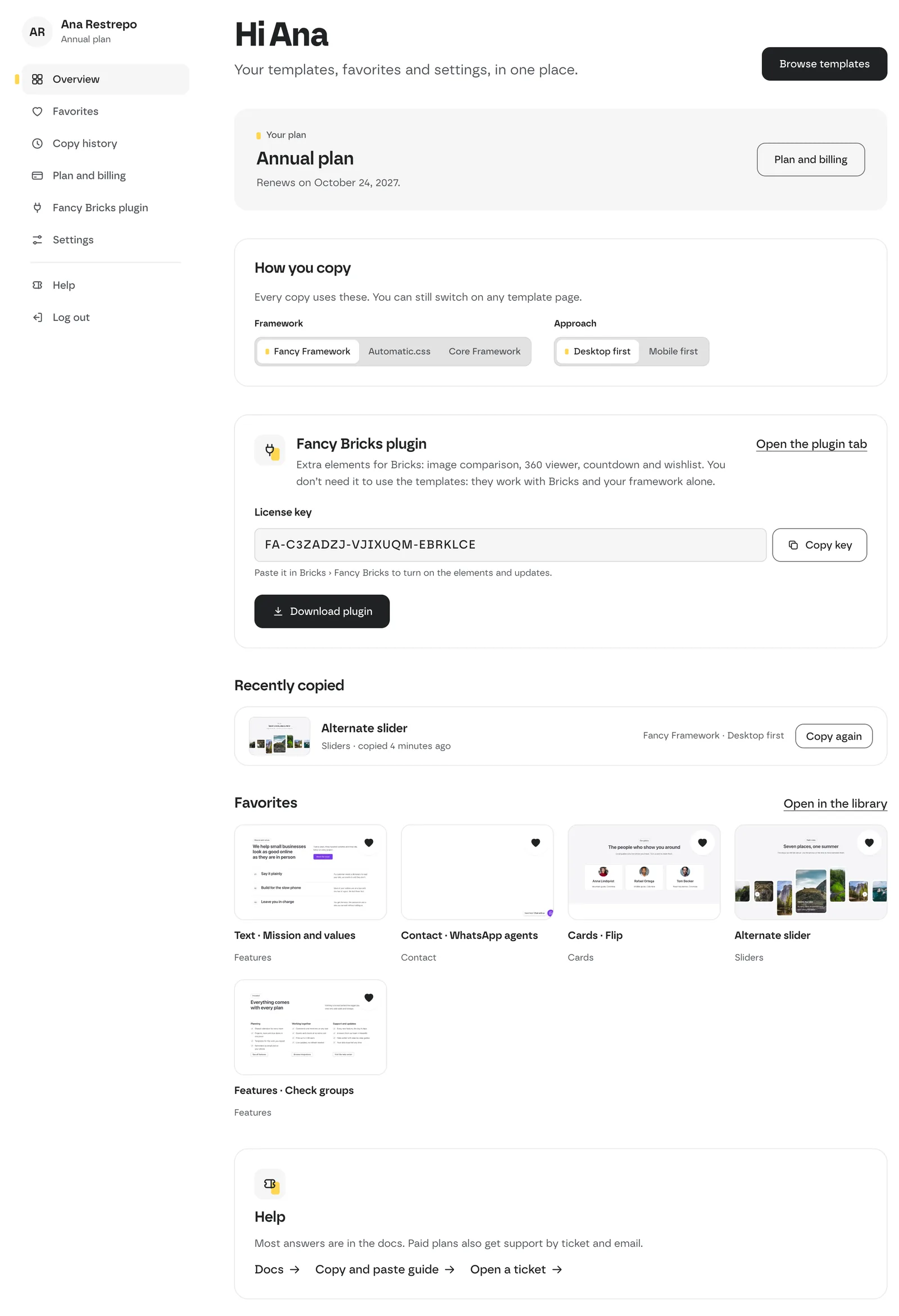 The Overview of an annual plan. The side menu takes you to every section.
- Your plan — the plan you're on and, on the annual plan, when it renews.
- How you copy — your default framework and approach (see Settings).
- Fancy Bricks plugin — on a paid plan, your license key (with Copy key) and Download plugin.
- Recently copied — the templates you copied last, each with Copy again to copy it with the same framework, approach and background. Show all copies expands the list.
- Favorites — the templates you saved with the heart icon. See Favorites.
- Help — links to the docs, the copy and paste guide and, on paid plans, Open a ticket.
Plan and billing
Your plan, the plugin download and your invoices. See Billing, renewal and upgrades.
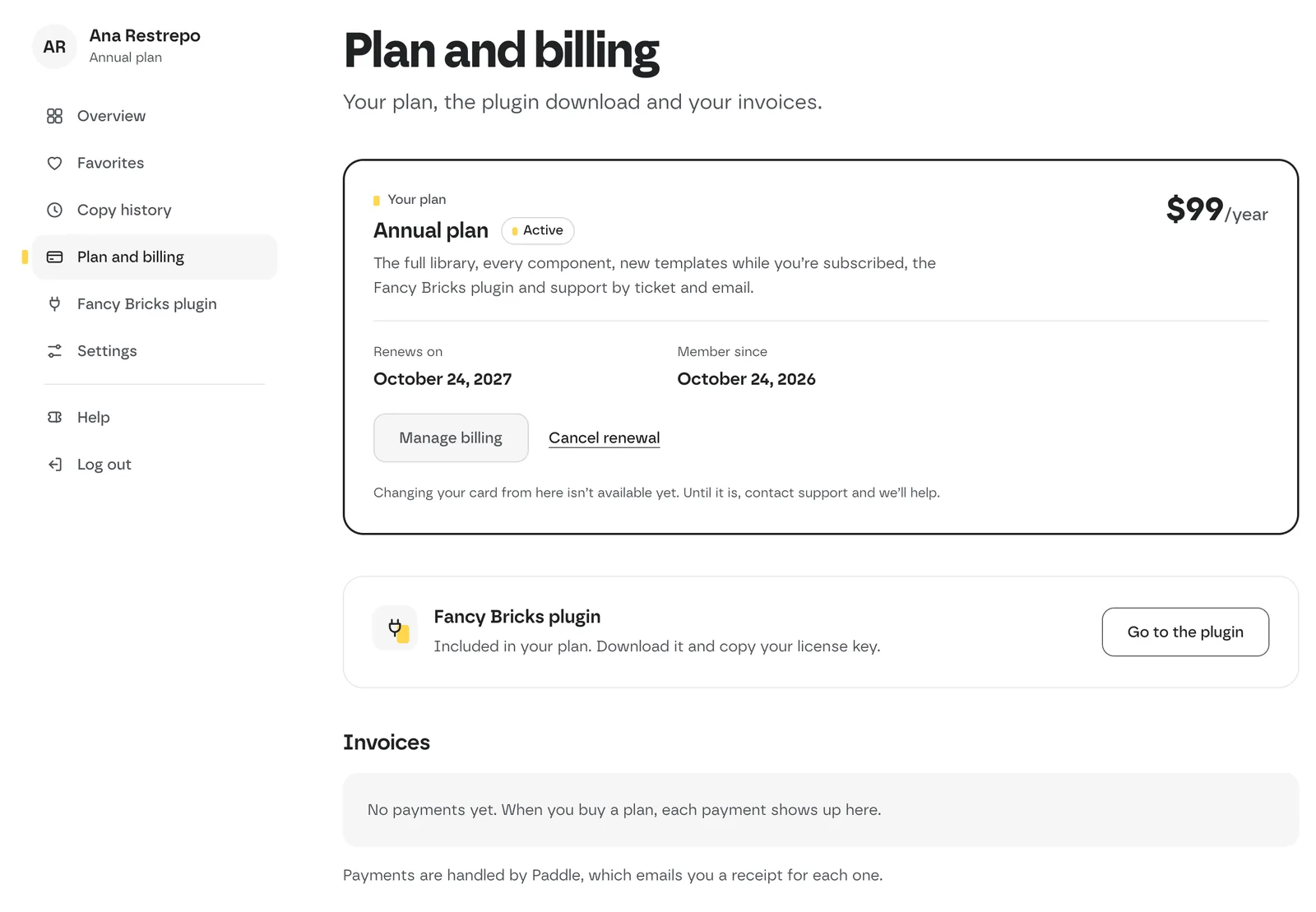 Plan and billing.
Fancy Bricks plugin
The download, your license key, the sites where the key is active, and the install steps. See Install and license.
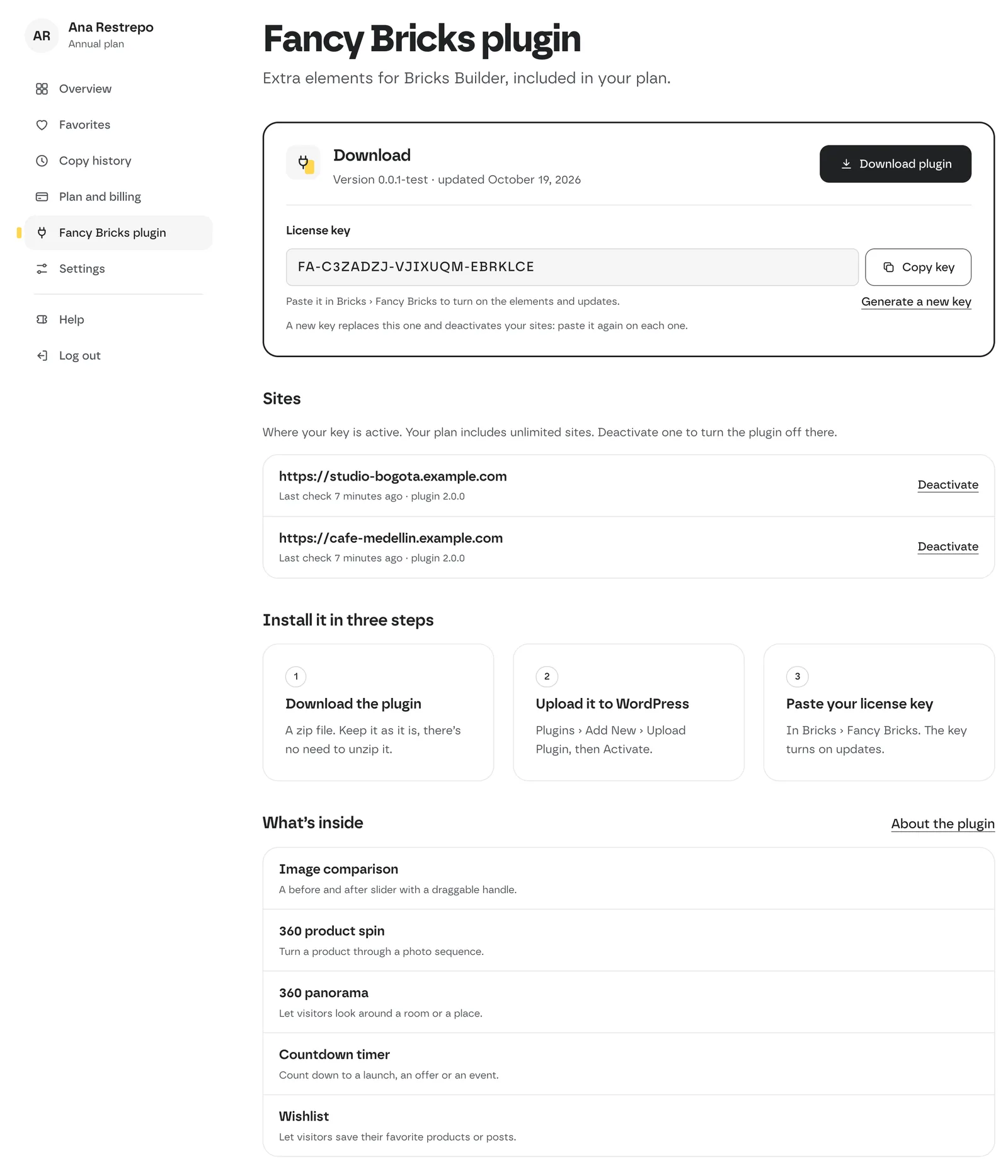 The Fancy Bricks plugin section.
Settings
How you copy, your details and your password.
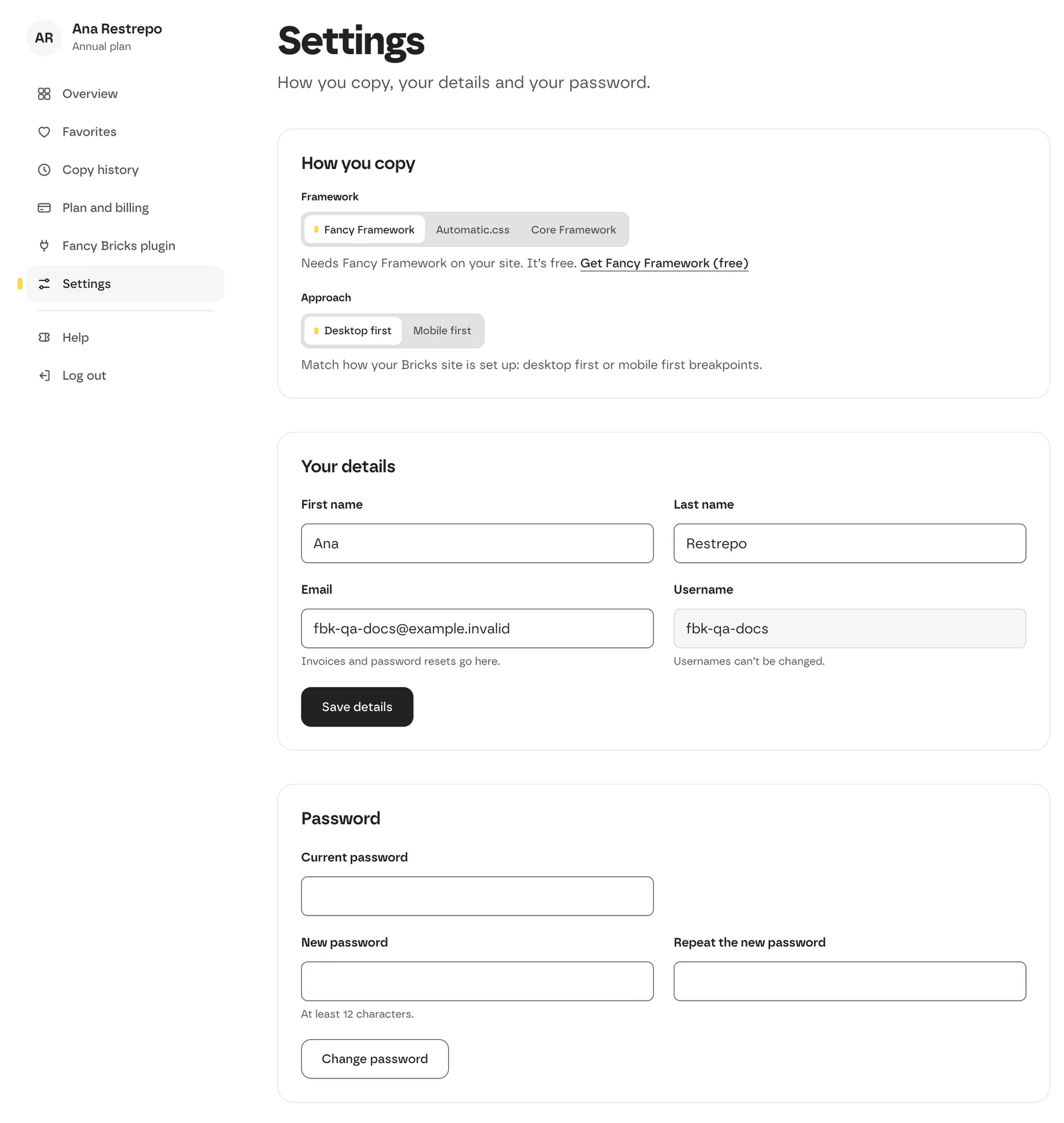 Settings. How you copy saves as soon as you pick an option.
- How you copy — Framework (Fancy Framework, Automatic.css or Core Framework) and Approach (Desktop first or Mobile first). Every copy uses these, and they save as soon as you pick one. You can still switch on any template page. Match the approach to how your Bricks site is set up: desktop first or mobile first breakpoints.
- Your details — first name, last name and email. Invoices and password resets go to this email. When you change it, we email a link to the new address: open it to confirm the change. Until then, the old email stays. Usernames can't be changed.
- Password — enter your current password and the new one twice (at least 12 characters).
After you change your password, other devices will need to log in again.